

What counts as a run
A run is one agent attempt on a task. An experiment launches one run per combination:What runs pay for
Runs cover executing experiments on Oqoqo’s managed cloud infrastructure. Your model providers bill model inference separately through your own API keys or subscriptions. Oqoqo may enforce capacity limits to keep infrastructure reliable for all organizations.Free plan, subscriptions, and top-ups
Every organization starts on the free plan with no credit card required. To get more runs, top up at any time, or subscribe to a paid plan for the best value and more features. Every plan includes the dashboard, the CLI, the plugin, Evals, Insights, Ask Oqo, unlimited team members, and unlimited projects, tasks, tools, treatments, and experiments. Two limits depend on the plan, and some features are on the Pro, Ultra, or Enterprise plan (What your plan includes).What your plan includes
The plans are Free, Pro, Ultra, and Enterprise. Each plan sets two limits, and each feature below names the lowest plan that includes it. Pricing shows what each plan has, and Organization settings → Usage & billing shows the values for your organization.
A top-up adds runs only, so it never changes a limit or a feature. Oqoqo can also give your organization a limit or feature for a limited time. Usage & billing and
oqoqo plan inspect mark each such value Custom for your organization with its last day, such as through Dec 31, 2026 UTC, and inspect_plan returns that day as until. After that day, your plan’s value applies again.
Pricing tags some features Beta. A Beta feature is still rolling out, so not every organization has it yet. If your plan includes one and you do not see it in Oqoqo, email support@oqoqo.ai.
See your plan’s limits and features
- Dashboard
- CLI
- Plugin (MCP)
Open Organization settings → Usage & billing. Under Your plan, the card of your plan lists its Limits and features, with the number of active schedules in use. The card of each other plan lists what that plan has.
Features your plan does not include
A feature that your plan does not include stays visible in the dashboard, with the word Upgrade on it:- A button, such as Connect custom agent, keeps its words and shows Upgrade inside it.
- A setting, such as Advanced mode, is turned off, with Upgrade after its name and one sentence that says what it does.
- A page, such as Brand, shows what the feature does and an Upgrade plan button. Its sidebar row shows Upgrade too.
plan_upgrade_required for a feature and plan_limit_reached for a limit. Each refusal has the Usage & billing link in details.setupUrl (Your plan does not include a feature, or a limit is reached).
Enterprise plans
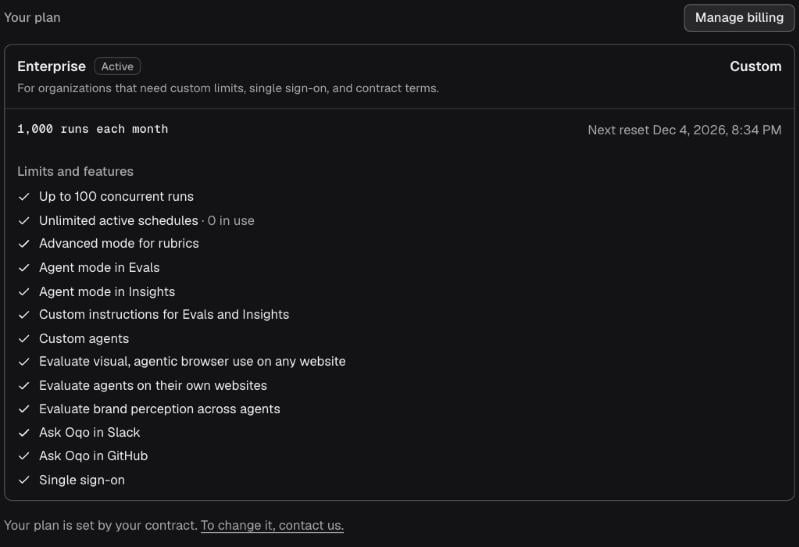
An Enterprise plan is set by a contract with Oqoqo. On Usage & billing, the plan card shows Custom, the runs your contract includes each month, and the date they reset. A limit or feature that your contract sets for your organization only is marked Custom for your organization. You cannot change an Enterprise plan yourself, so the page shows no other plans. To change it, contact us.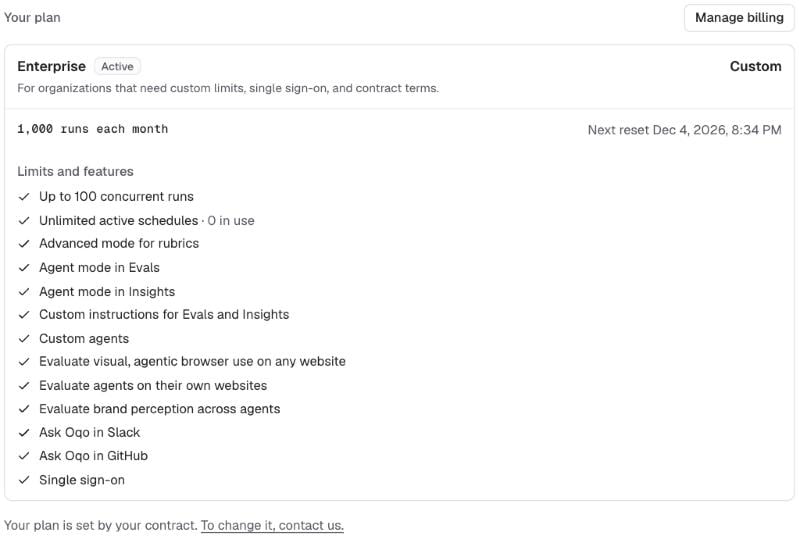
Move to a lower plan
A move to a lower plan starts at the end of your billing period, and it deletes nothing. Features that the lower plan does not include stop:
After an upgrade, the new limits and features apply at once. Nothing that the plan paused resumes by itself.
Check your run balance
- Dashboard
- CLI
- Plugin (MCP)
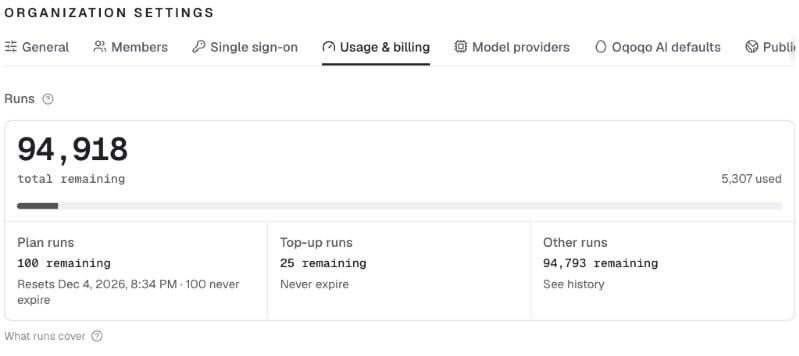
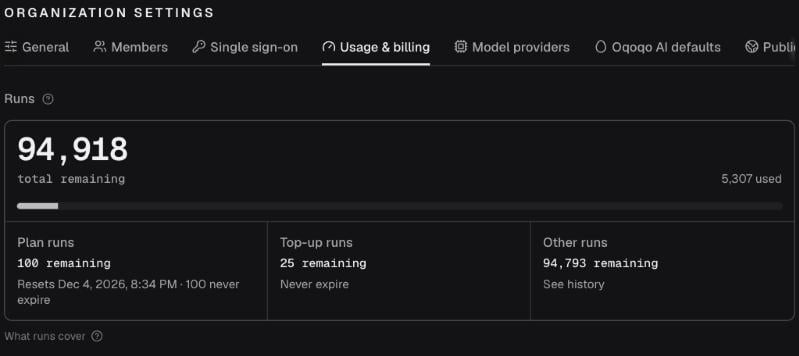
Open Organization settings → Usage & billing. The New experiment footer also shows the run cost before you launch.
Get more runs
Plan changes and top-up purchases happen in the dashboard via Stripe checkout (oqoqo quota inspect returns a billingUrl link; the plugin’s quota tools return no link).
- Open Organization settings → Usage & billing (or start from Pricing).
- Select a plan under Your plan, or an amount of runs under Top up.
- Complete checkout in Stripe.
When you don’t have enough runs
Oqoqo blocks any launch that exceeds your available balance. Add runs or reduce tasks, agents, treatments, or trials before launching again. If a schedule runs short of runs, Oqoqo notifies its owners and pauses the schedule if the balance is still short when the next launch arrives.From the CLI and the plugin
Next steps
Profile and API keys
Step 7: connect personal subscriptions and create API keys.
Launch an experiment
See how selections combine into total runs.
Notifications
Step 8: configure balance and experiment alerts.
FAQ
Common questions on runs and billing.