

Create a schedule
You need at least one finished experiment.- Dashboard
- CLI
- Plugin (MCP)
- Select Schedule on a finished experiment (or open Automate → Schedules, select New schedule, and pick an experiment).
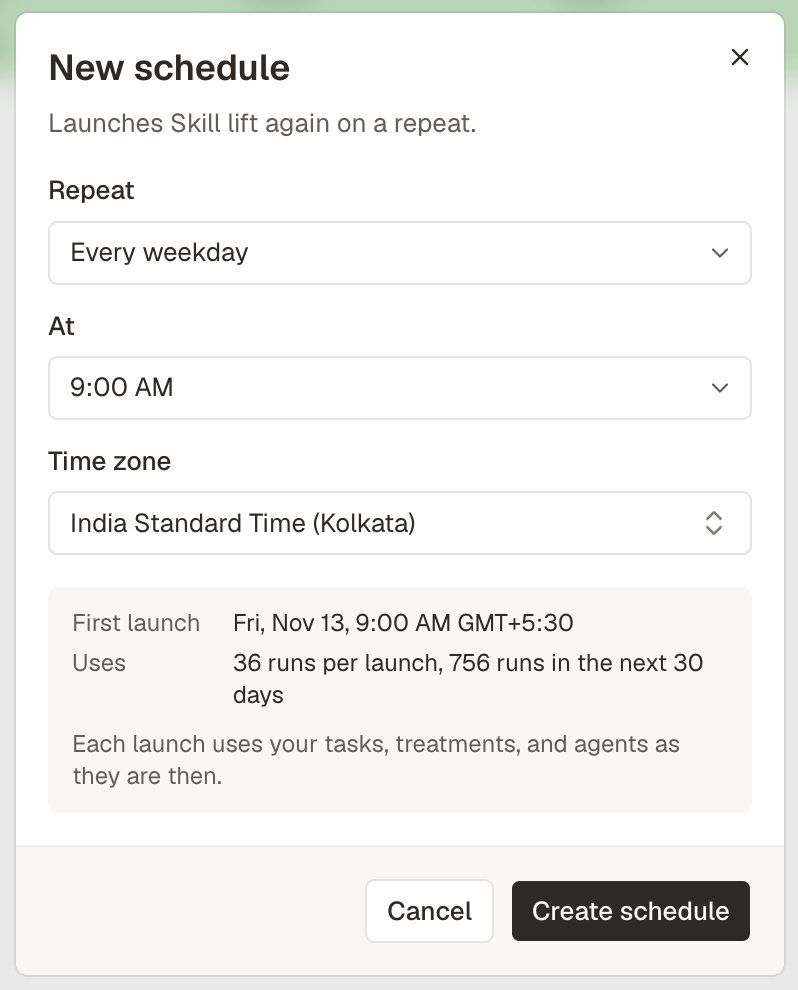
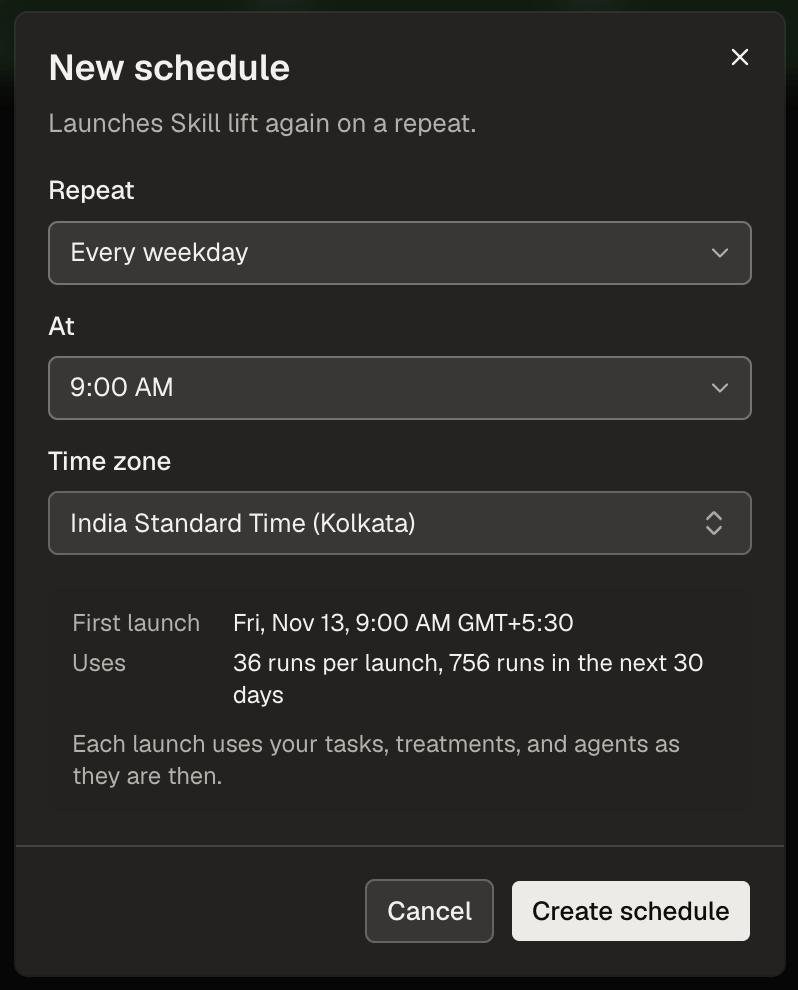
- Set Repeat, time, and Time zone.
- Review First launch and Uses (run forecast), then select Create schedule.
Schedules fire on the quarter hour (
00, 15, 30, or 45), at most once per hour. Each project supports up to 50 active schedules.Choose when it launches
Pick Every hour, Every day, Every weekday, Every week, Every month (use Last day to run every month without skipping 30-day months or February), or Custom with a 5-field cron expression (such as30 8 * * 1,3,5).
The Time zone defaults to your browser’s zone and follows daylight saving time automatically. In the CLI and plugin, pass an IANA time zone name like America/New_York, Europe/London, or UTC (abbreviations like EST are rejected).
Time zone normalization and schedule names
Time zone normalization and schedule names
GMTandEtc/GMTnormalize toUTC; legacy names such asUS/PacificandAsia/Calcuttanormalize toAmerica/Los_AngelesandAsia/Kolkata.- New schedules inherit the source experiment’s name until you rename the schedule on its detail page.
- Each experiment’s ⋯ menu and info popover link directly to any schedule that launches or launched it.
Manage a schedule
Open any schedule under Automate → Schedules to inspect its cadence, next run, run forecast, status (Active, Paused, or Needs attention), and Experiments, Runs, and Frictions tabs.How scheduled launches behave
- Overlaps: if the previous scheduled experiment is still running when the next slot arrives, Oqoqo skips that launch. After 3 consecutive skips, owners receive a Schedule skipping launches alert.
- Notifications: clean Completed runs (including rubric pass/fail results) send no completion notice; launches with run errors or failed Evals/Insights scoring send an in-app alert and at most one email per day per schedule. (To fail builds on pass-rate drops, run in CI with
oqoqo results analyze.) - Lineage: scheduled experiments display From schedule in All experiments and Launched now from schedule when triggered manually.
When Oqoqo pauses a schedule
Oqoqo automatically pauses a schedule and marks it Needs attention if:- A launch hits a blocker (disconnected provider, insufficient runs, or Agent mode disabled for the organization).
- A task, treatment, or model used by the experiment was deleted (select Edit to pick another experiment).
- Three scheduled launches fail in a row, or the user the schedule runs as leaves the organization.
- Another teammate edited a resource in a schedule that uses someone else’s personal integration or MCP OAuth sign-in.
Runs for scheduled launches
Oqoqo forecasts upcoming run demand across all active schedules in chronological order up to your next plan reset or expiration, so you see both runs per launch and runs in the next 30 days before creating or editing a schedule. If other launches spend your balance and leave a schedule short, Oqoqo sends Schedule short of runs before pausing at launch time.Who a schedule runs as
A schedule runs using the credentials and personal integrations of whoever created, resumed, or last edited its cadence or experiment (Resume as you when taking over another member’s schedule). Launch now always runs as the person selecting it. If a schedule uses a member’s personal integration or MCP OAuth account and a teammate edits any task, file, machine, tool, treatment, or custom agent it launches, Oqoqo pauses the schedule for review. This prevents someone from launching experiments under another person’s personal account unexpectedly.Delete a schedule
Deleting a schedule keeps all experiments it already launched. Conversely, deleting the source experiment of a schedule also deletes the schedule (the delete preview warns you first).- Dashboard
- CLI
- Plugin (MCP)
Open the schedule, open ⋯, select Delete, and confirm.
From the CLI and the plugin
Always runpreview before creating or updating a schedule, and pass the latest lockVersion on edits so concurrent changes do not overwrite each other.
Next steps
Track results over time
Use schedules to detect regressions and model drift.
Launch an experiment
Create the experiment that a schedule runs.
Read results
Compare pass rates across scheduled runs.
oqoqo schedules
Full reference for schedule flags and responses.