

Ask Oqo in GitHub is in private beta. Email support@oqoqo.ai to enable it for your organization.
Connect a GitHub account
Connect each GitHub account once. Its repositories need no step of their own.1
Open the project your repositories are about
The account takes the project you have open as its default project. You can change it later.
2
Open Ask Oqo in GitHub (CI/CD)
Select Ask Oqo in GitHub (CI/CD) under Automate in the sidebar or on Home, or GitHub in the Ask Oqo header. It opens the tab of the same name in Organization settings. If the tab shows Connect GitHub, select it, connect GitHub on Profile → Integrations, and return.
3
Add your GitHub account
Select Add GitHub account. GitHub asks which account gets the Oqoqo AI app and which repositories the app can read. In a GitHub organization, an owner may have to approve the install.
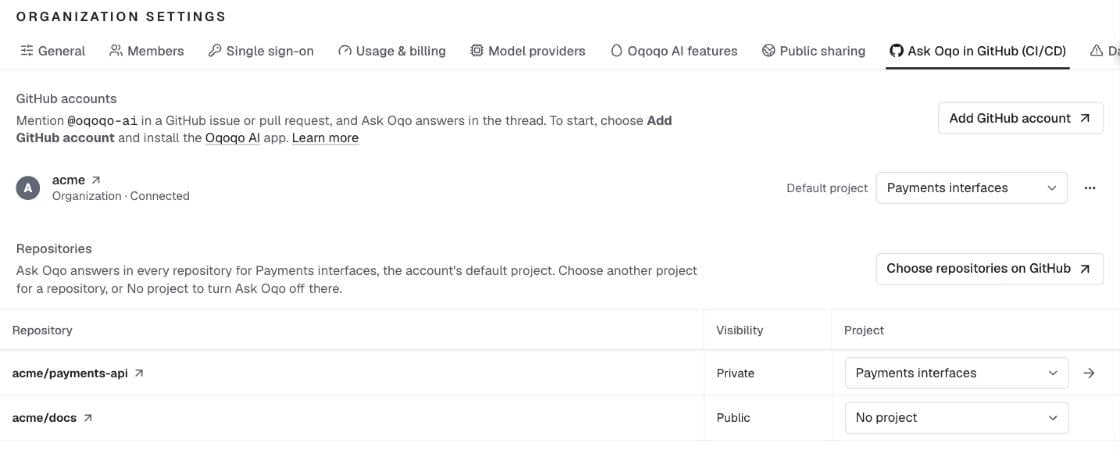
- The app was already installed on the account: the account shows Not connected. Select Connect on its row.
- Each person links their own GitHub account: everyone who wants to ask must connect GitHub on Profile → Integrations and open the Ask Oqo in GitHub (CI/CD) tab once, so that Oqoqo knows which GitHub account is theirs.
Ask on GitHub
Mention @oqoqo-ai in a new comment and ask your question. Ask Oqo reacts with eyes when it starts, then replies in the thread.- Mention it every time. Ask Oqo reads only comments that mention it. A follow-up comment with a mention continues the same conversation.
- Each comment runs as its author. Ask Oqo answers only people whose GitHub account is linked to an Oqoqo account in your organization, each with their own access.
- Approvals are comments. Ask Oqo asks before the same actions as in the dashboard. It posts the question as a comment, and only the person who asked can answer, in a reply that mentions @oqoqo-ai.
- A reply is a comment. Everyone who can open the repository can read it, and in a public repository that is everyone.
- It reads one repository. Ask Oqo reads the code of the repository the comment is in, and it can’t change the repository.
Change projects and accounts
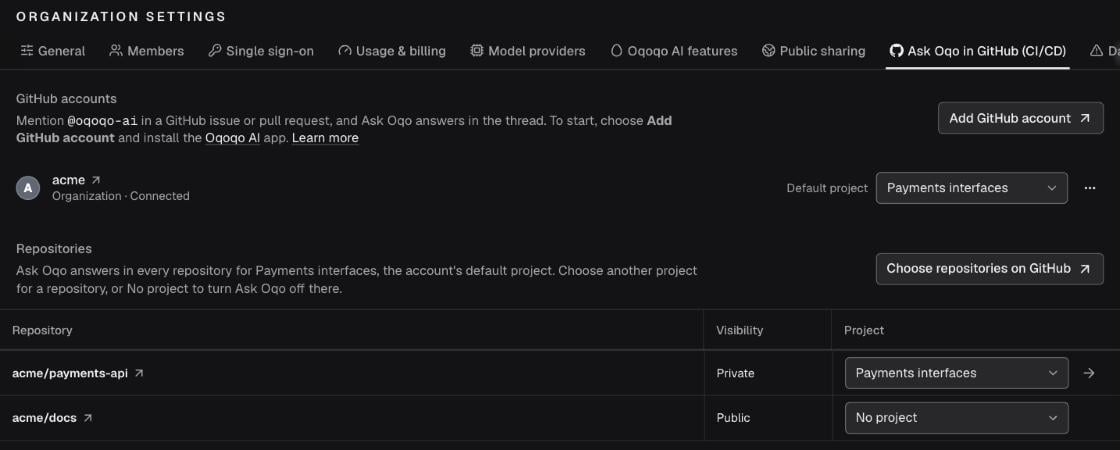
Manage everything on Organization settings → Ask Oqo in GitHub (CI/CD). Each account and repository name opens its page on GitHub. You install the app and choose its repositories on GitHub; Oqoqo keeps each account’s default project and what you chose for a repository.
A thread follows its repository: after a repository gets another project, the next comment in an older thread is answered for the new project.
From the CLI and the plugin
Installing the app, choosing its repositories, and connecting GitHub to your profile stay in the browser. The list returns the links to those pages and the name to mention.
Troubleshooting
Next steps
Ask Oqo
Explore Ask Oqo capabilities, approvals, and models.
Ask Oqo in Slack
Ask from Slack direct messages and channels.