

Web agents are in private beta. Email support@oqoqo.ai to enable them for your organization.
Web agents is an Ultra feature. See what your plan includes, or compare plans.
Use an experiment of web agents to ask them the questions your customers ask. You read each answer with its sources and searches, and you can grade it with your own criteria. With Brand (private beta), you also see who the answers name and cite.
An experiment of web agents uses the same tasks, Evals, Insights, and runs as an experiment of CLI agents. It has no treatments, machines, or files, because a web agent can’t use them.
Claude answers only when signed in, so set up its browser and save it with your account signed in. The other web agents can use a fresh browser with the site’s defaults or a browser you set up. If a web agent returns no answer, the run shows that outcome.
How it works
For example, 3 prompts × 2 web agents × 1 trial launches 6 runs from your organization’s run balance.Find web agents in the dashboard
Once web agents are enabled for your organization, the dashboard adds these places:
A list that holds both kinds of run, such as All runs or All frictions, has one Agent column, and a web agent’s row shows its name and a Web tag. A list of only web agents names the column Web agent.
Turn a web agent on or off
Manage → Agents has two tabs under its title, CLI agents and Web agents. Web agents lists each web agent with its Browser and its switch, and you can search by name and filter by status. New experiment offers only the web agents that are on, and a launch that names one that is off is refused. Turning a web agent off keeps its runs.- Dashboard
- CLI
- Plugin (MCP)
- Open Manage → Agents and select Web agents.
- Turn a web agent’s switch on or off and select Save changes. You can also open the web agent and switch Use in new experiments, which saves at once.
Set up a web agent’s browser
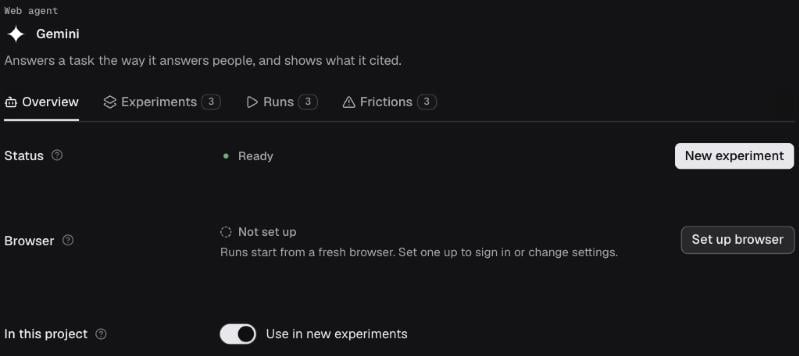
Your runs with a web agent start from a browser you set up and save: signed in or signed out, with cookies accepted and settings changed. Your own browser for a web agent follows you to every project in your organization, and its prompts count toward your limits with that web agent. A project can also have a shared browser for the web agent, and its prompts count toward the limits of the account it is signed in to, so use a team account for it. The web agent’s terms apply. Which browser your runs use, and who can edit or reset each one, works as it does for websites (Who can use a saved browser). The Browser card shows Not set up, Saved, or Needs setup, and for a saved browser, Signed in or Not signed in.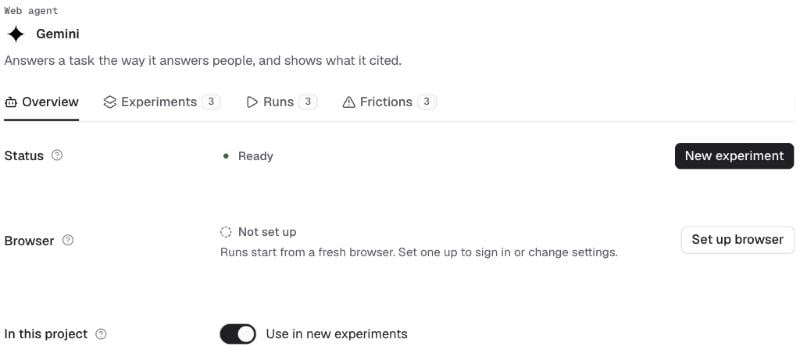
- Dashboard
- CLI
- Plugin (MCP)
- Open Manage → Agents, select Web agents, open a web agent, and select Set up browser on the Browser card.
- If neither you nor the project has a saved browser for the web agent, choose Who can use it: Just me (the default) or Everyone in this project.
- Select Open browser. Sign in, accept cookies, or change settings. Passkeys don’t work here, so sign in with a password or a code.
- Select Save. When you see Browser saved, close the dialog.
Retry stopped runs
If runs stop because a saved sign-in expired, the web agent asked to sign in, or an account reached its message limit, the experiment shows which web agent stopped, why, and how many runs a retry reserves from your organization’s run balance. The original answers and recordings stay in the source experiment. Anyone in the project can retry runs that used the shared browser, and only the person who launched the experiment can retry runs that used their own browser or a fresh one.- Dashboard
- CLI
- Plugin (MCP)
If an account reached its message limit, wait until it can accept messages again and select Retry N runs. If the saved sign-in expired, select Set up browser, sign in again, and select Save. The retry starts a linked experiment for those runs.
Add your brand and competitors
Brand (private beta) is its own feature, and it works with agents of both kinds. With it, Oqoqo marks each name and each source in a web agent’s answer as yours, a competitor’s, or other, and the experiment has a Brand section. See Add your brand and competitors.Write prompts with criteria
A task for a web agent is a prompt, written the way a person would ask it, with a rubric of yes/no criteria. For example:
On New experiment under Web agents, enter the prompt in Create a task, select Rubric to add criteria, and select Add task. From the CLI or the plugin, write the task as you would any other (Tasks).
A task with files or a machine other than the Standard Dev Machine can’t be used, because a web agent can’t use them. The launcher doesn’t offer such a task, and a launch or preflight that names one is refused with
launch_selection_invalid.
Launch an experiment of web agents
Select the prompts on the left, and choose the web agents in the Configuration panel. Each web agent appears once. Before launch, review the estimated number of prompts for each web agent whose browser was saved signed in. These prompts count toward the limits of the account that browser is signed in to: yours, or the shared browser’s account. One saved browser answers at most two questions at a time, whoever launched them, so teammates on one shared browser share those two. Other questions wait their turn.- Dashboard
- CLI
- Plugin (MCP)
- Select New experiment, then Web agents in the CLI agents | Web agents switch at the top of the Configuration panel. New experiment on a web agent’s Overview opens the same page.
- Select the prompts to ask.
- Open Agents in the Configuration panel and select each web agent to run.
- Set Trials and Max Concurrency, and turn Evals and Insights on or off. Set Max Concurrency to
1to ask one prompt at a time. - Select Launch. The footer shows the runs the experiment uses.
Read the results
Every experiment has the same sections: Matrix, Frictions, Brand (when your organization has Brand), and Runs. An experiment of web agents opens on the Matrix, like any experiment, and differs in two ways:- The run list says Web agent in place of Agent and has no Treatment, Treatment use, Tokens, or Cost column, because a web agent run has none of them.
- It has no Comparisons, because it has no treatments to compare.
oqoqo experiments list --kind web. From the plugin, your AI assistant calls List experiments (list_experiments) with kind web.
Read a run’s answer
The tabs of a run are the same for every run, in this order: Traces, Output, Browser, Evals, Frictions. A run shows only the tabs it has something for, so a web agent run has no Traces and opens on Output. There you read the response, check Run facts in the sidebar (account state, temporary chat, web search, and source counts), and inspect its sources. Select Evals for each criterion’s verdict or Frictions for issues found in this run.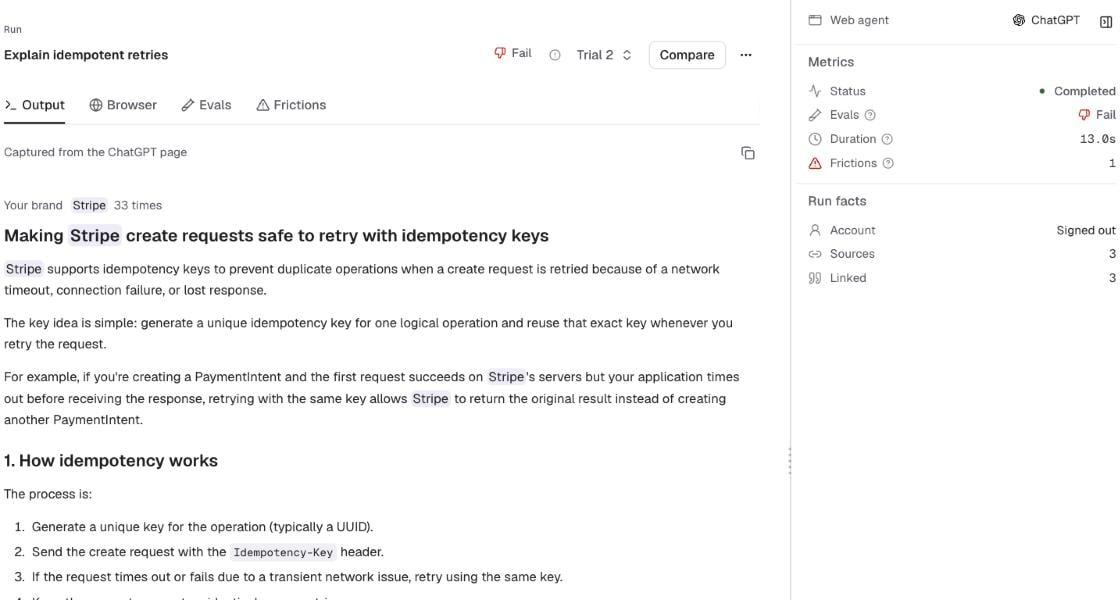
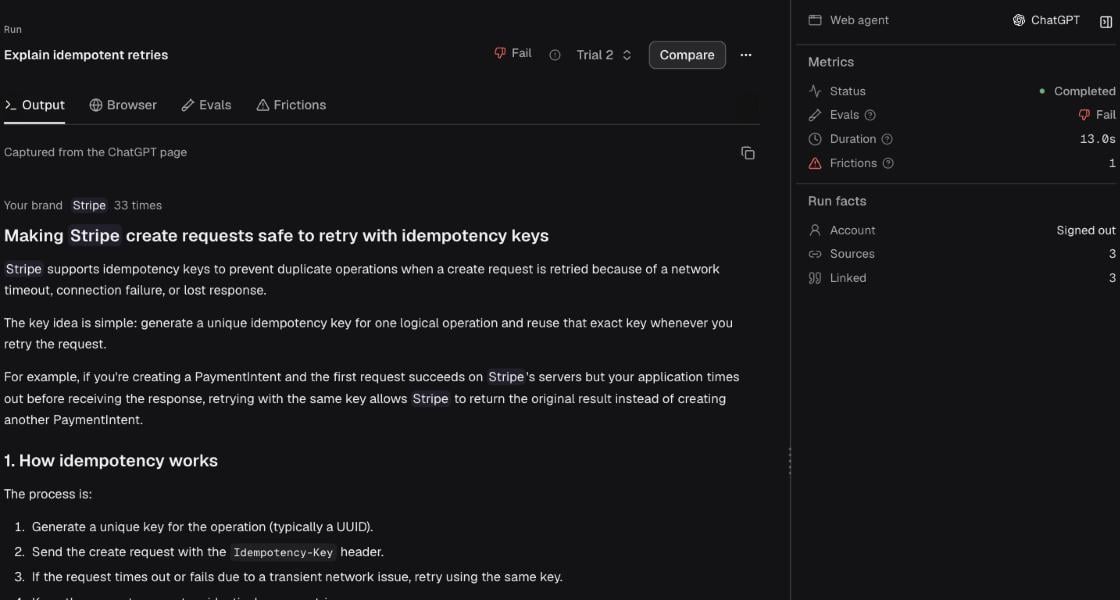
A run includes the model name or search queries when the page discloses them. A historical run keeps the fields recorded at the time.
A run sends one prompt and no reply. When a web agent ends its response with a question for you and a list of answers, the run ends there. Answer shows the question with its answers and the note “The web agent asked a question and waited for a reply. A run sends one prompt and no reply.” Evals grade that response with your criteria. In the CLI and the plugin, the turn has a
question with its text and options.
- Dashboard
- CLI
- Plugin (MCP)
Open the run from Runs or from a cell of the Matrix. It opens on Output.
Review the browser evidence
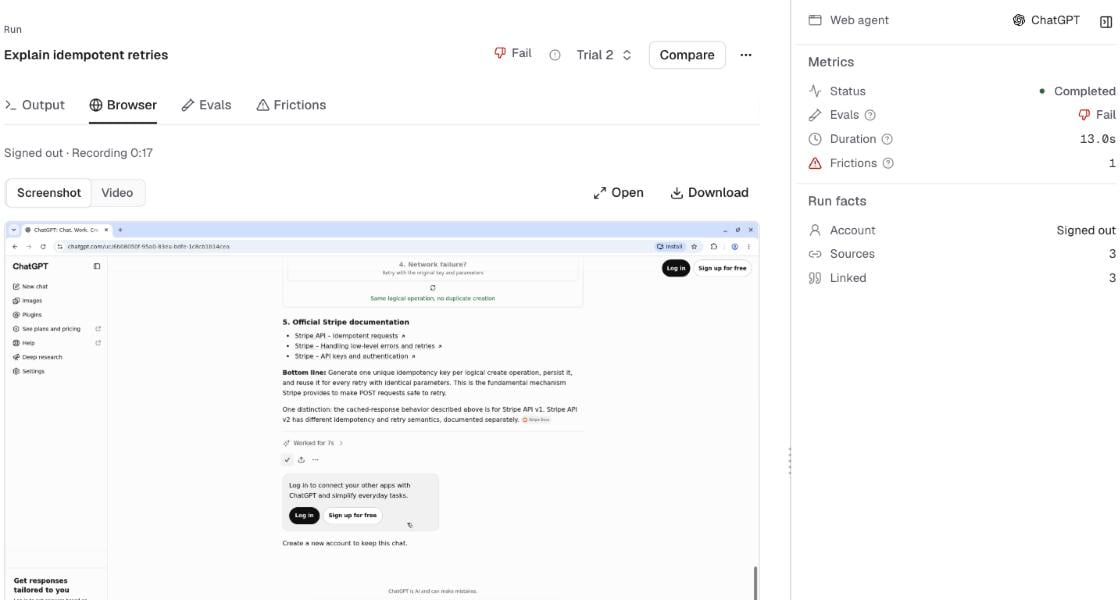
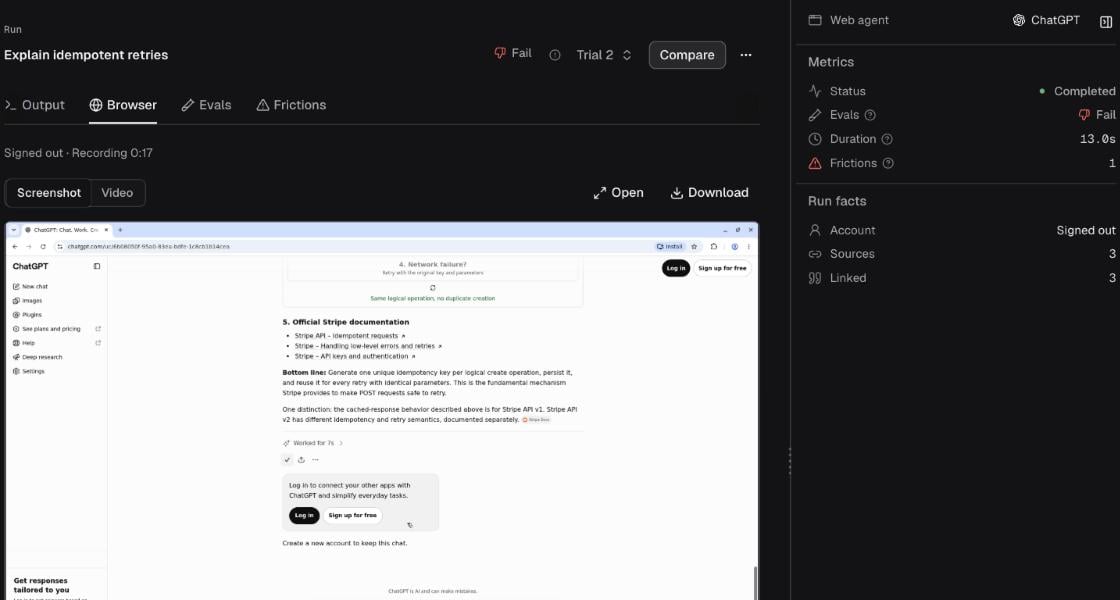
Open Browser to see the screenshot and recording when available. For new runs, the screenshot shows what was visible in the browser at the end of the run. Read the full response on Output.- Dashboard
- CLI
- Plugin (MCP)
Choose Screenshot or Video. Select Open to zoom into the screenshot, or Download to save the screenshot or recording you are viewing. The video’s own controls play it, change its speed, and show it full screen.
Share results
Share an experiment of web agents with your teammates by its link. You can’t publish it at a public link: the dashboard offers only the teammate link, and the CLI and the plugin refuse withpublication_unavailable_for_web_agents.
Read results with care
- Answers change from run to run. A web agent can answer the same prompt differently each time, so read a count from fewer than 5 answers as a hint. Add trials before you draw a conclusion.
- A citation is a link in the answer. An item listed in a source panel can have an unknown citation status. Oqoqo counts confirmed links.
- Most web agents don’t report their searches. A run with no Searches list doesn’t mean the web agent didn’t search.
- A web agent can ask for a human check. Oqoqo does not answer these checks. The run ends with “The web agent restricted access to this question.” and is not graded.
Next steps
Brand
See who the answers name and cite.
Tasks
Write prompts and their rubrics.
Evals
See how criteria are judged.
Web agent tools
The plugin’s web agent and Brand tools and their fields.