

What a public link shares
Public pages render Matrix, Frictions, Runs, and each run’s Traces, Output, and Evals, alongside tasks, treatments, and Evals and Insights models (Comparisons is omitted).
Before publishing, Oqoqo swaps internal IDs for public IDs and scrubs text resembling credentials (blocking publication if any potential secret remains). Public links are unlisted and ask search engines not to index them.
Publish an experiment
You can publish one live public link per finished (Completed or Needs review) experiment.- Dashboard
- CLI
- Plugin (MCP)
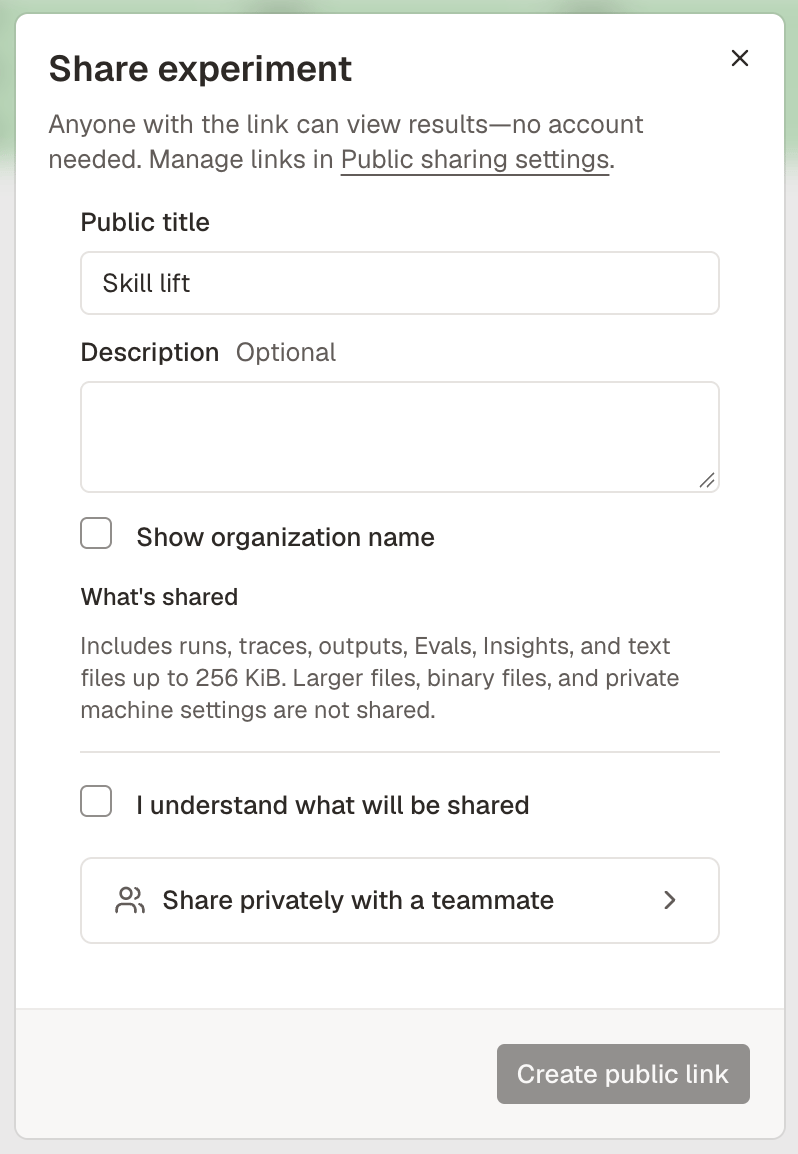
- Open the experiment and select Share.
- Enter a Public title (up to 120 characters) and optional Description (up to 2,000 characters).
- Optionally enable Show organization name (off by default).
- Review What’s shared, confirm you understand what will become public, and select Create public link.
Manage public links
Open Organization settings → Public sharing to search and manage every public link in your organization:Publish an update
When you rerun Evals or Insights on a published experiment, publish an update to refresh the existing link without breaking the URL (the previous snapshot stays live until the update builds).- Dashboard
- CLI
- Plugin (MCP)
Open Organization settings → Public sharing, open the experiment’s actions menu, select Publish update, and confirm the update.
Unpublish an experiment
Unpublishing disables the public link immediately and deletes its public files (republishing later generates a brand-new link). Unpublish any active public experiments before deleting a project.- Dashboard
- CLI
- Plugin (MCP)
Open Organization settings → Public sharing, open the experiment’s actions menu, select Unpublish, and confirm.
List public experiments
- Dashboard
- CLI
- Plugin (MCP)
Open Organization settings → Public sharing.
Share privately with a teammate
Organization members can view every experiment directly. In Share → Share privately with a teammate, invite new teammates via Organization settings → Members or select Copy link to send the private dashboard URL.From the CLI and the plugin
Anyone can read a public experiment’s structured results without signing in usingoqoqo gallery get (oqoqo gallery get pub_5d1f9a27 --section matrix) or Get results from a public link (get_public_experiment).
Next steps
Track results over time
Schedule recurring runs and compare trends.
Schedules
Automate experiment launches on a cron cadence.
Read results
Inspect Matrix, Frictions, and Runs.
oqoqo experiments
Reference for publish and gallery CLI commands.