

Custom agents are in private beta. Email support@oqoqo.ai to enable them for your organization.
An agent that runs tools on a remote host (such as Ask Oqo) cannot access the run’s files, services, or treatment tools. Give it tasks that match what it can reach (Run Ask Oqo as a custom agent).
Visibility across projects
Custom agents belong to your organization and appear under Manage → Agents in every project with a Custom tag. A newly added custom agent starts enabled in the project where you created it and disabled in other projects until you turn it on. All projects share the same encrypted environment variable values.Connect a custom agent
- Dashboard
- CLI
- Plugin (MCP)
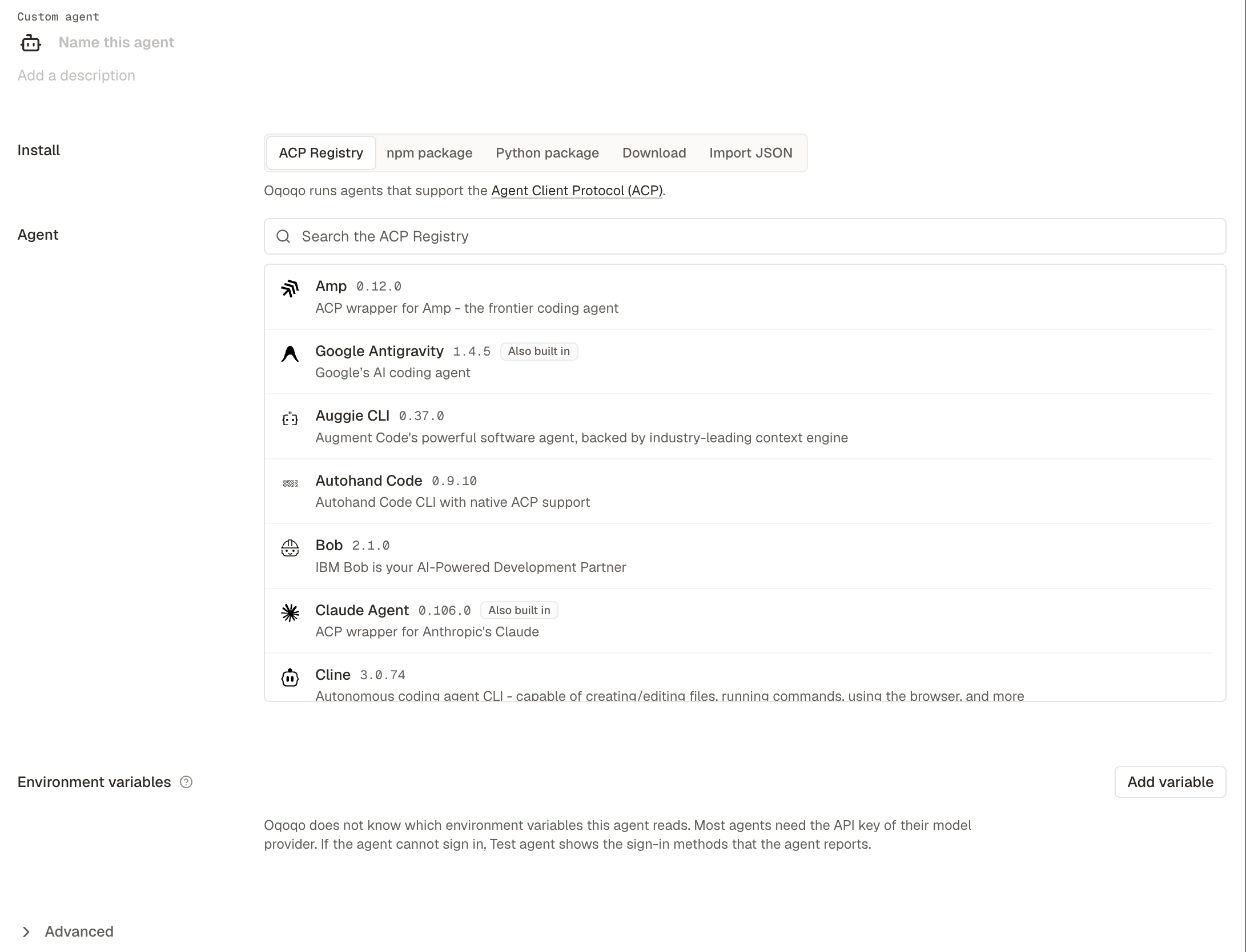
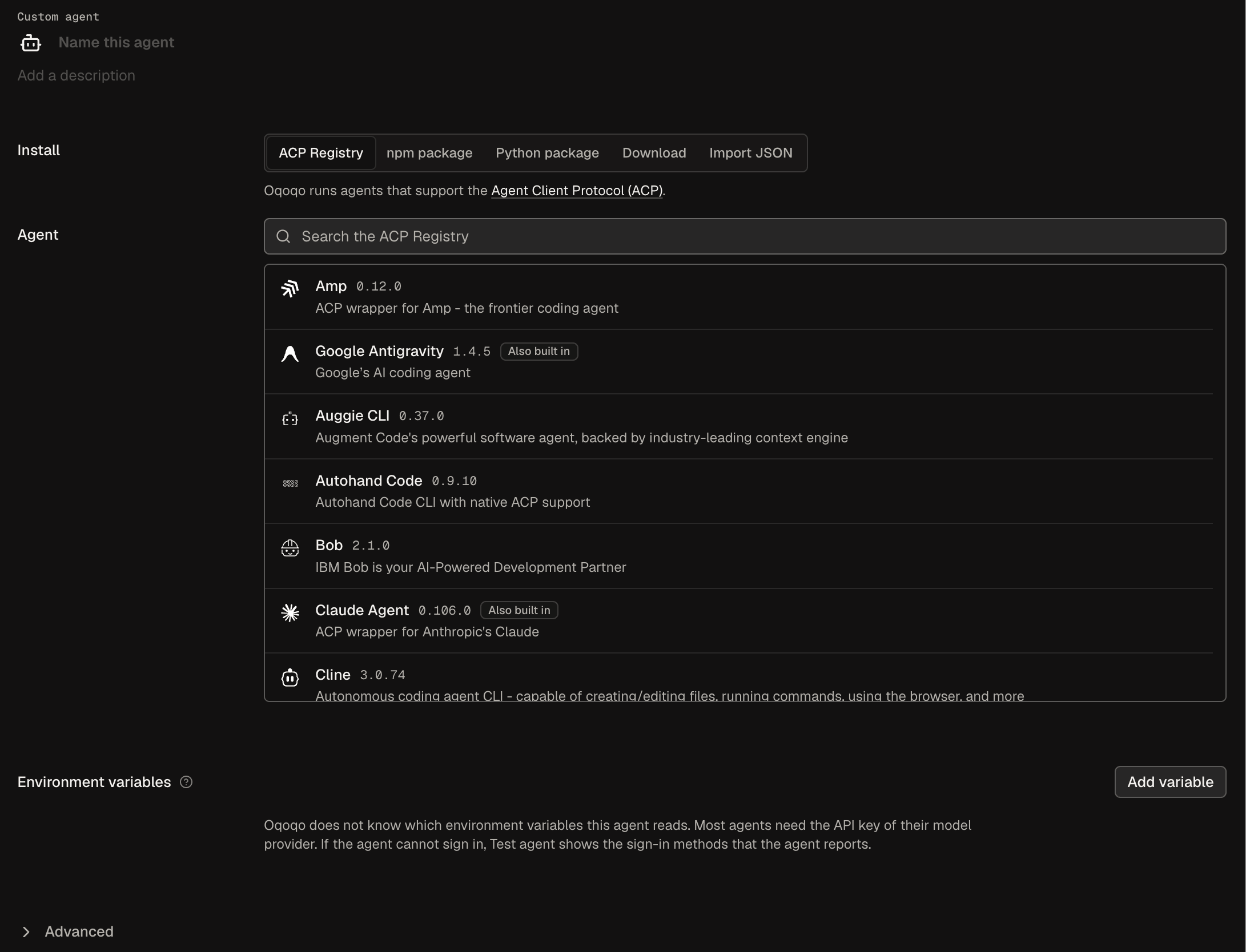
- Open Manage → Agents and select Connect custom agent.
- Enter a unique Name (120 characters or fewer) and an optional description.
- Under Install, choose ACP Registry, npm package, Python package, Download, or Import JSON.
- Under Environment variables, select Add variable for each credential or setting the agent needs.
- Select Connect agent, then run Test agent on the agent page.
Install sources
Oqoqo installs the agent in the run’s machine and communicates with it over ACP on standard input and output (stdio). Your Arguments (oragent.json entrypoint) must start the agent in ACP server mode rather than an interactive terminal UI.
- For recognized ACP Registry entries (such as goose), Oqoqo pre-populates common variable names with empty values, and shows an Also built in tag when Oqoqo already includes a built-in version.
- Separate Arguments with spaces and quote any argument that contains spaces.
- In the CLI and plugin, npm package, Python package, and Download all use
source.kind: "manual".
Set environment variables
ACP agents cannot complete browser sign-ins during runs, so supply API keys, tokens, and default model configuration (for exampleGOOSE_MODEL when Test agent runs with Agent default) through environment variables (up to 64).
- Variable names must start with a letter and use uppercase letters, digits, and underscores. Reserved runtime names such as
PATH,HOME, andOQO_*are blocked. - You cannot rename a variable after saving it, so remove and re-add it instead.
- Values stay secret: you enter them only in the dashboard, and Oqoqo scrubs them from saved run artifacts.
Test a custom agent
Test agent verifies that the custom agent installs, starts, and responds to a prompt. Each test uses 1 run (Agent check task, Agent default model, Raw Agent treatment, with Evals and Insights off). Test runs do not appear in All experiments or on Home, though the CLI and plugin can list them. Before testing in another project, confirm the agent is enabled there and Agent default is turned on.- Dashboard
- CLI
- Plugin (MCP)
Open the custom agent’s page and select Test agent under Status. Select Open test run to watch it live.
Statuses
When multiple states apply, the highest status in this list takes precedence:
Any finished experiment run with current settings updates the status (unless cancelled or the agent refused MCP servers). Saving any settings or secret change resets the status to Not tested.
Fix a failing test
When an agent shows Needs attention, Status highlights the failed step, the agent’s error message, and a link to fix it.Confirm the agent’s models
Oqoqo discovers a custom agent’s models from actual runs rather than a Refresh models button. Agent default lets the agent pick its own default model (or read a variable likeGOOSE_MODEL). After a run completes, any models the agent reported appear in Models so you can toggle them on for launches.
Custom agents do not support effort levels.
Run a custom agent in an experiment
New experiment lists custom agents below built-in agents with a Custom badge. Select New experiment from a ready custom agent’s page to pre-select it alongside built-in agents on Agent default.- Oqoqo blocks the launch if variable values are missing or if a treatment includes MCP servers the agent refuses (
mcpServersRefused). - Custom agents cannot turn off individual MCP tools (
mcp_tools_off_unsupported), so leave all server tools enabled when launching a custom agent with MCP servers. - Running a custom agent that is Not tested or Needs attention shows a warning notice but allows launching.
- By default, Oqoqo copies treatment skills into
~/.agents/skills; change Advanced → Skills folder on the agent page if the agent reads a different path.
Read a custom agent’s results
Custom agent results appear on Matrix (with Comparisons), Frictions, and Runs alongside built-in agents, with a few notes:- Agent default displays the reported model once known (for example, Agent default: opus).
- If a run hits a token limit or stops early, a note explains why; Evals still score whatever work finished.
- If the agent fails before answering, the run is marked errored, excluded from pass rates, and does not consume your run balance.
- Token and cost columns remain blank unless the custom agent reports them.
Where a cost comes from
Every cost displays its source on the run page and on hover in Runs:
If a Matrix cell mixes runs with different cost sources, it displays Mixed sources with separate averages instead of combining them.
Change or remove a custom agent
Update settings anytime on the agent page and select Save changes (past runs keep their launch settings). Wait for any running test or experiment to finish before removing an agent.- Dashboard
- CLI
- Plugin (MCP)
Open the custom agent’s page, open ⋯, select Remove, and click Remove agent to confirm.
From the CLI and the plugin
Next steps
Oqoqo AI defaults
Step 5: choose models for Evals, Insights, and Ask Oqo.
Run Ask Oqo as a custom agent
Evaluate Ask Oqo using a pinned CLI download.
Compare agents and models
Compare your custom agent against built-in agents.
Launch an experiment
Select your custom agent in an experiment.