

Sites are in private beta. Email support@oqoqo.ai to enable it for your organization.
Sites is an Ultra feature. See what your plan includes, or compare plans.
Add a Site
- Dashboard
- CLI
- Plugin (MCP)
- Open Manage → Tools → Sites and select Add website.
- Enter the Web address and select Add website.
- Select Skip for now if runs can start from a fresh browser. If the task needs an account, a cookie choice, or other settings, select Set up browser and choose Who can use it. Then select Open browser, sign in, accept cookies, or change settings, and select Save.
Who can use a saved browser
A saved browser is yours unless you share it with the project. Each website, and each web agent, can have two:
Your runs use your own browser if you set one up, otherwise the project’s shared browser, otherwise a fresh browser. If your own browser for a web agent needs setup, you can’t launch until you set it up again, because your runs don’t fall back to the shared browser.
- Dashboard
- CLI
- Plugin (MCP)
The Browser card shows the browser your runs use. When neither you nor the project has a saved browser for the website, Set up browser asks Who can use it: Just me (the default) or Everyone in this project.When your runs use the shared browser, the card says “Shared with this project · Saved by” and the teammate’s name. Select Use your own browser instead to set up yours. When your runs use your own browser and the project has no shared one, select Set up a shared browser to add one. When both exist, the card shows a Your browser row and a Shared browser row, each with Edit browser and Reset browser.
- Each launch uses the browser it picked before the runs start. A browser saved or reset later doesn’t change those runs: runs that already opened it finish, and runs that are still waiting stop, so you can retry them.
- Changing the website’s address to another host, or deleting the website, deletes every browser saved for it, including your teammates’ and the shared one.
- When an admin removes a member from the organization, that person’s own browsers are deleted. A shared browser they saved stays with its project.
Use a Site in a treatment
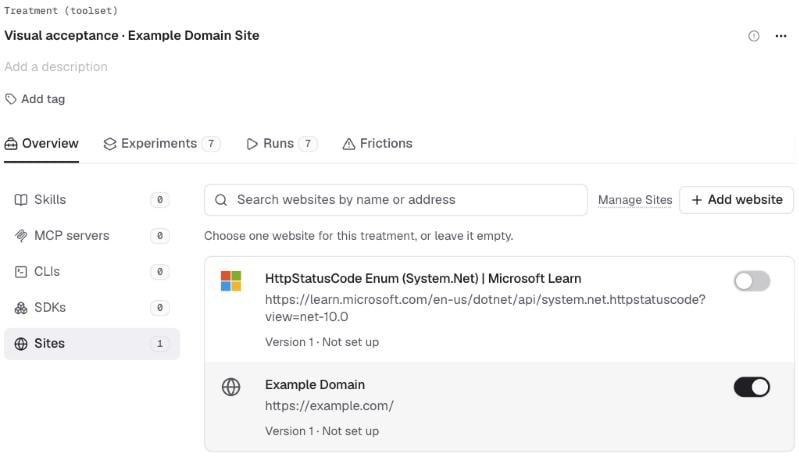
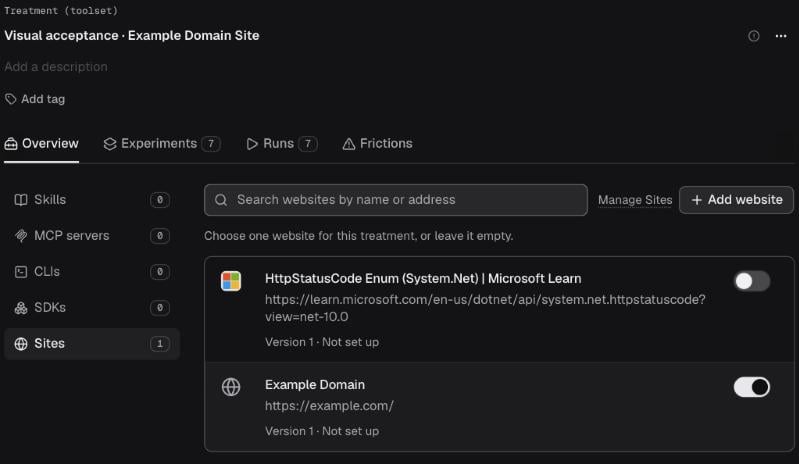
A treatment can include one website, pinned to the version you choose (including its address and allowed hosts).- Dashboard
- CLI
- Plugin (MCP)
In the treatment editor, open Sites, choose a website using its switch (or select Add website to add one without leaving your draft), and save the treatment. Select a website name to open its settings in a new tab.
Mark a website as official
Each project can designate one website version as its official website. When you mark a website version official, Oqoqo maintains a read-only Official site treatment that points to that version, replacing any previous official website in the project.- Dashboard
- CLI
- Plugin (MCP)
Open the website under Manage → Tools → Sites. For the current version, open the More actions menu and select Mark as official (or Remove official to clear it). To mark an older version, pick that version from the version switcher and select Mark as official.
Find a website and its results
Open Manage → Tools → Sites. Search by name or address, or use tags to narrow the list. Select a website to open Overview for its allowed hosts and saved browsers, or open Treatments to see which treatments use it.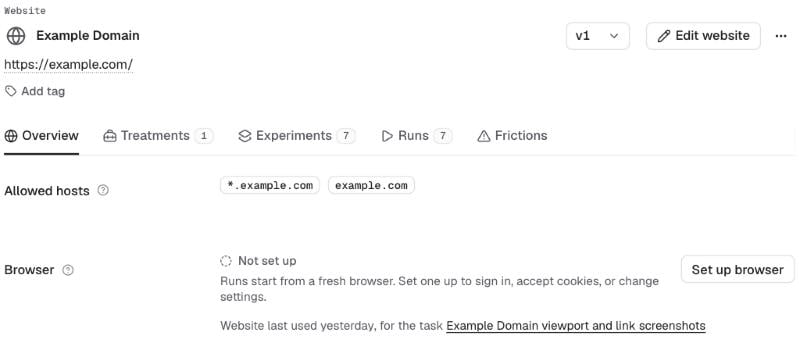
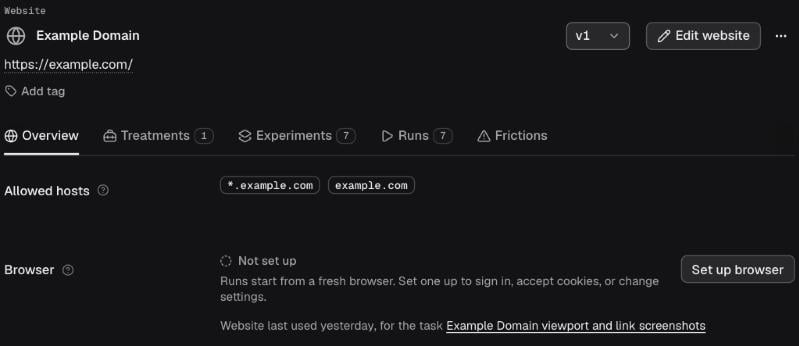
*.example.com if the agent should reach only the hostnames you list. Save your changes to create a version. Choose an earlier version to see the settings and treatments for that version.
Experiments, Runs, and Frictions show results across all versions. Deleting a website deletes every browser saved for it, while past results remain readable.
Review a run
Open the run’s Browser tab to see its final screenshot, recording, and browser actions.- Dashboard
- CLI
- Plugin (MCP)
- Choose Screenshot or Video. Select Open to scroll through the original screenshot at a readable size, using Next section or Previous section for long pages, or Download to save the screenshot or recording you are viewing. The video’s own controls change its speed and show it full screen.
- Expand a browser tool call in Traces and select Show this step in Browser to jump to that action. The recording seeks to the model turn that issued the call (several actions from one turn can share a timestamp).
- Turn on Only failed or blocked to find where an agent got stuck. If the website blocked a host the task needs, select Allow beside that action, review the host, and select Save changes to create a new version for future runs.
- Select View screenshot on a browser action to inspect the exact image the agent received, when available. Actions that returned text have no screenshot.
Retry stopped runs
If a website’s browser is saved again or reset while an experiment waits to start its runs, the experiment page says which website stopped and how many runs stopped. Retrying reserves that many runs from your organization’s run balance. Anyone in the project can retry runs that used the shared browser, and only the person who launched the experiment can retry runs that used their own browser or a fresh one.- Dashboard
- CLI
- Plugin (MCP)
Select Retry N runs for the stopped group. The retry starts a linked experiment with those runs, and they use the browser a new launch uses.
Next steps
Treatments
Attach a website to a treatment and compare it against a baseline.
Evals
Use the final screenshot in visual rubric criteria.
oqoqo sites
CLI commands for managing websites and browser evidence.
Site and browser tools
Plugin (MCP) tools for Sites and browser evidence.