

AI search experiments are in private beta. Email support@oqoqo.ai to enable them for your organization.
How it works
For example, 3 prompts × 2 engines × 1 trial launches 6 runs from your organization’s run balance.Find AI search in the dashboard
Once AI search experiments are enabled for your organization, the dashboard adds these places:
A list that holds both kinds of run, such as All runs or All frictions, has one Agent column. An engine’s row shows its name, an AI search tag, and where it was asked from, such as “US”.
Turn an AI search engine on or off
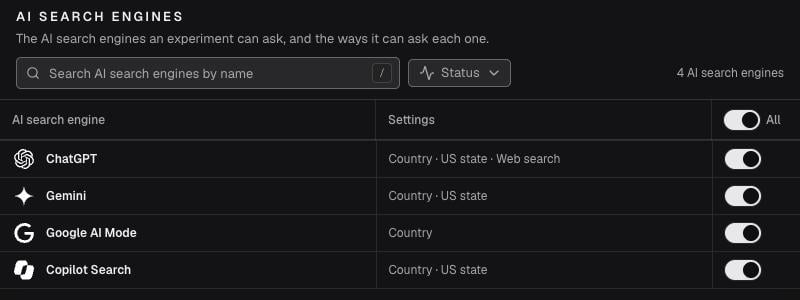
Manage → AI search engines lists the engines the way Manage → Agents lists agents: you can search by name, filter by status, and switch each engine on or off. New experiment offers only the engines that are on, and a launch that names an engine that is off is refused. Turning an engine off keeps its runs.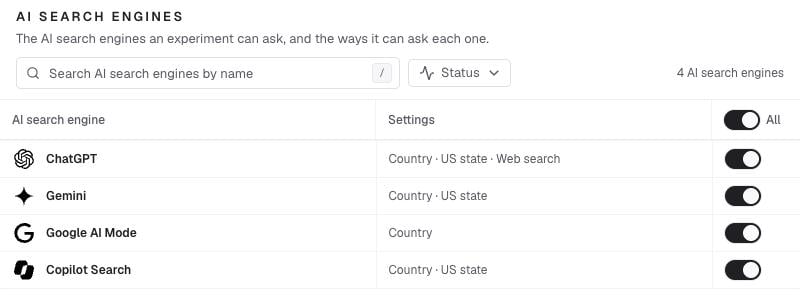
- Dashboard
- CLI
- Plugin (MCP)
- Open Manage → AI search engines.
- Turn an engine’s switch on or off and select Save changes. You can also open the engine and switch Use in new AI search experiments, which saves at once.
Add your brand and competitors
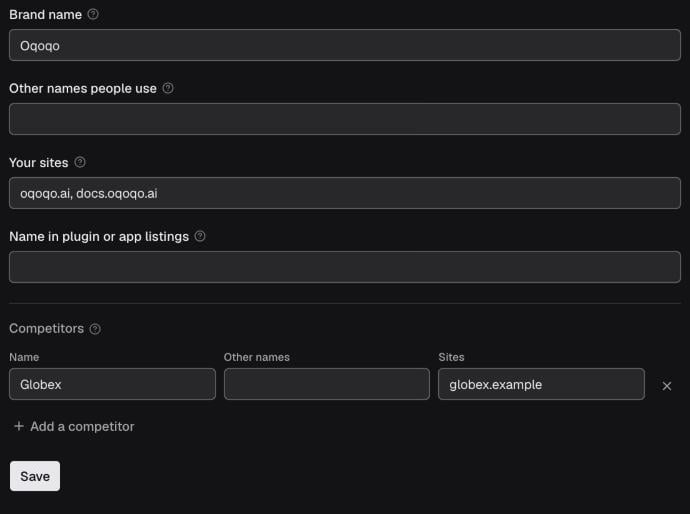
Your brand details tell Oqoqo which names and sites are yours and which belong to your competitors. Oqoqo uses them to mark each source and each name in an answer as yours, a competitor’s, or other. Agents never see them.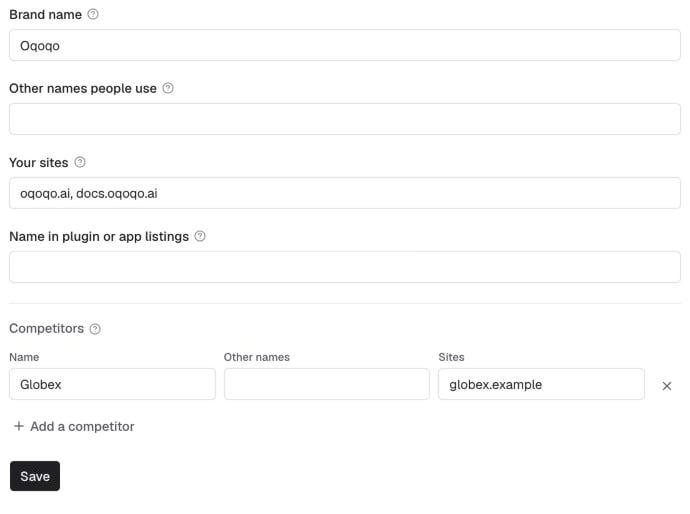
- Dashboard
- CLI
- Plugin (MCP)
- Open Manage → Brand. On New experiment, you can also select the value in the Brand row of the Configuration panel (Add, or your brand name), which opens the same form in a dialog.
- Enter the Brand name as an answer would write it, and any Other names people use.
- Under Your sites, list your sites, separated by commas. A site covers its subdomains, and you can paste full addresses.
- Fill in Name in plugin or app listings only when a plugin or app listing calls your brand by a different name.
- Under Competitors, select Add a competitor for each brand to tell apart from yours, up to 10, with its Name, Other names, and Sites.
- Select Save.
Write prompts with criteria
A task in an AI search experiment is a prompt, written the way a person would ask it, with a rubric of yes/no criteria. For example:
On New experiment under AI search engines, enter the prompt in Create a task, select Rubric to add criteria, and select Add task. From the CLI or the plugin, write the task as you would any other (Tasks).
A task with files or a machine other than the Standard Dev Machine can’t be used, because an AI search engine can’t use them. The launcher doesn’t offer such a task, and a launch or preflight that names one is refused with
launch_selection_invalid.
Launch an AI search experiment
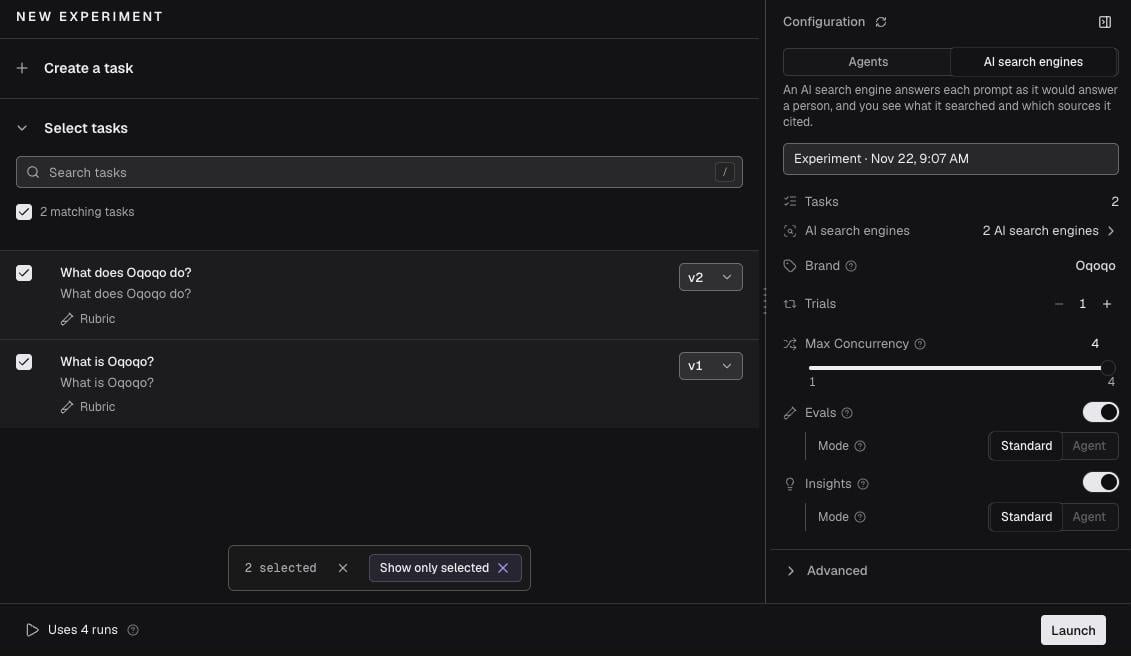
Select the prompts on the left, and choose the engines and where to ask each one from in the Configuration panel.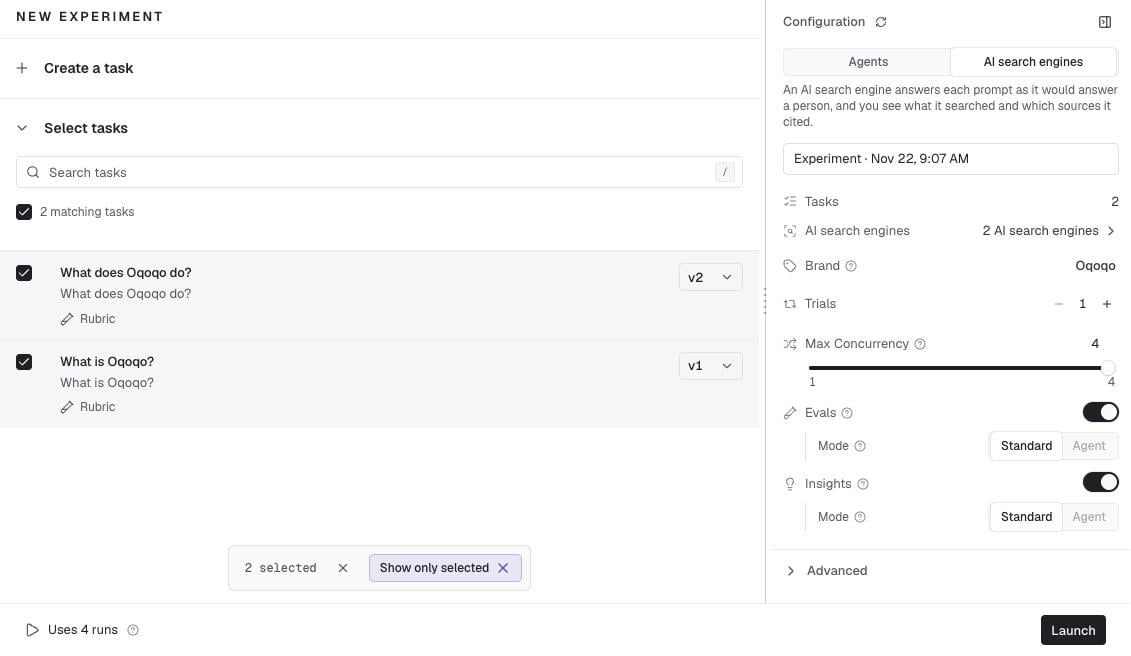
The countries differ a little from engine to engine, and each engine lists its own.
- Dashboard
- CLI
- Plugin (MCP)
- Select New experiment, then AI search engines at the top of the Configuration panel. New AI search experiment on Manage → AI search engines opens the same page.
- Select the prompts to ask.
- Open AI search engines in the Configuration panel and select each engine to ask. Under a selected engine, set how to ask it:
- Country is where the engine is asked from. For the United States, US state narrows it to one state, or Any state, where the engine offers states.
- Web search, for ChatGPT only, is ChatGPT decides, which lets ChatGPT search only when it chooses to, as it does for most people, or On, which makes it search for most prompts.
- Set Trials and Max Concurrency, and turn Evals and Insights on or off. Set Max Concurrency to
1to ask one prompt at a time. - Select Launch. The footer shows the runs the experiment uses.
Read the Results tab
An AI search experiment opens on its Results tab, which has four blocks. Every count is out of the answers, which are the runs that finished, and reads like “3 of 4”.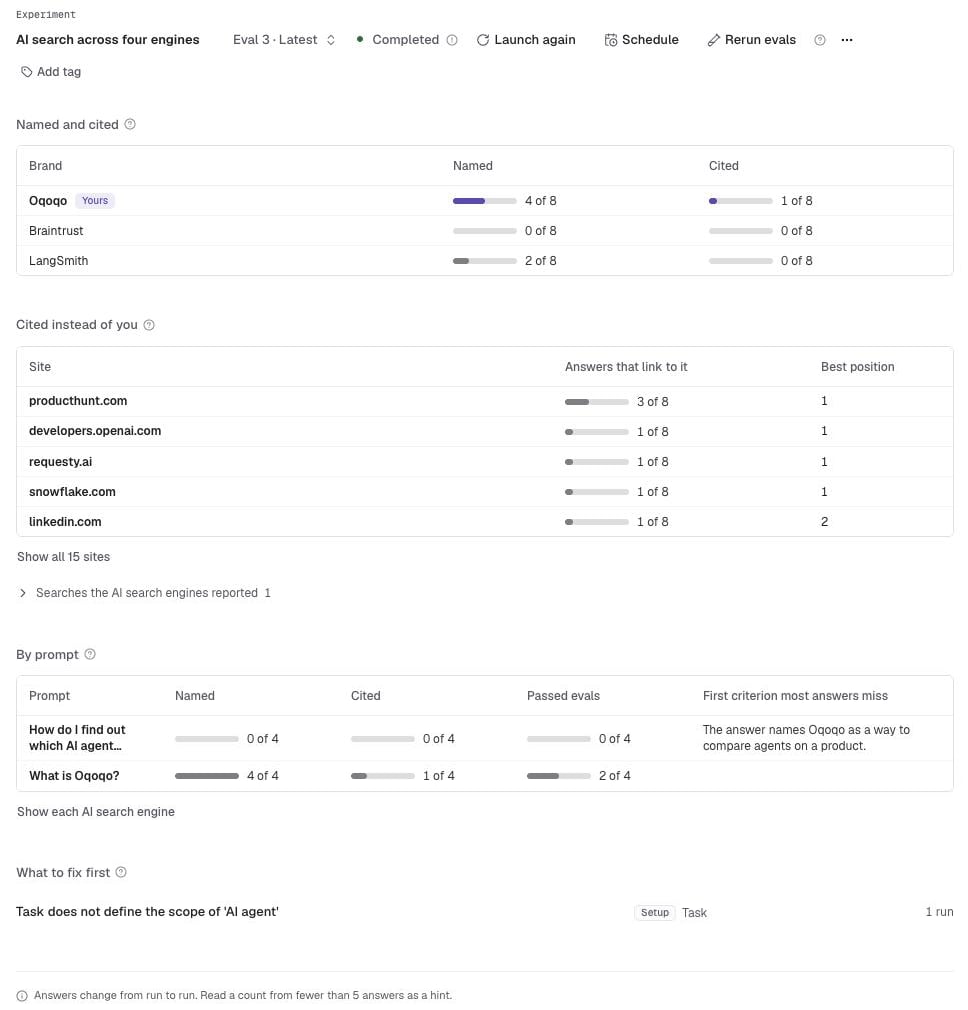
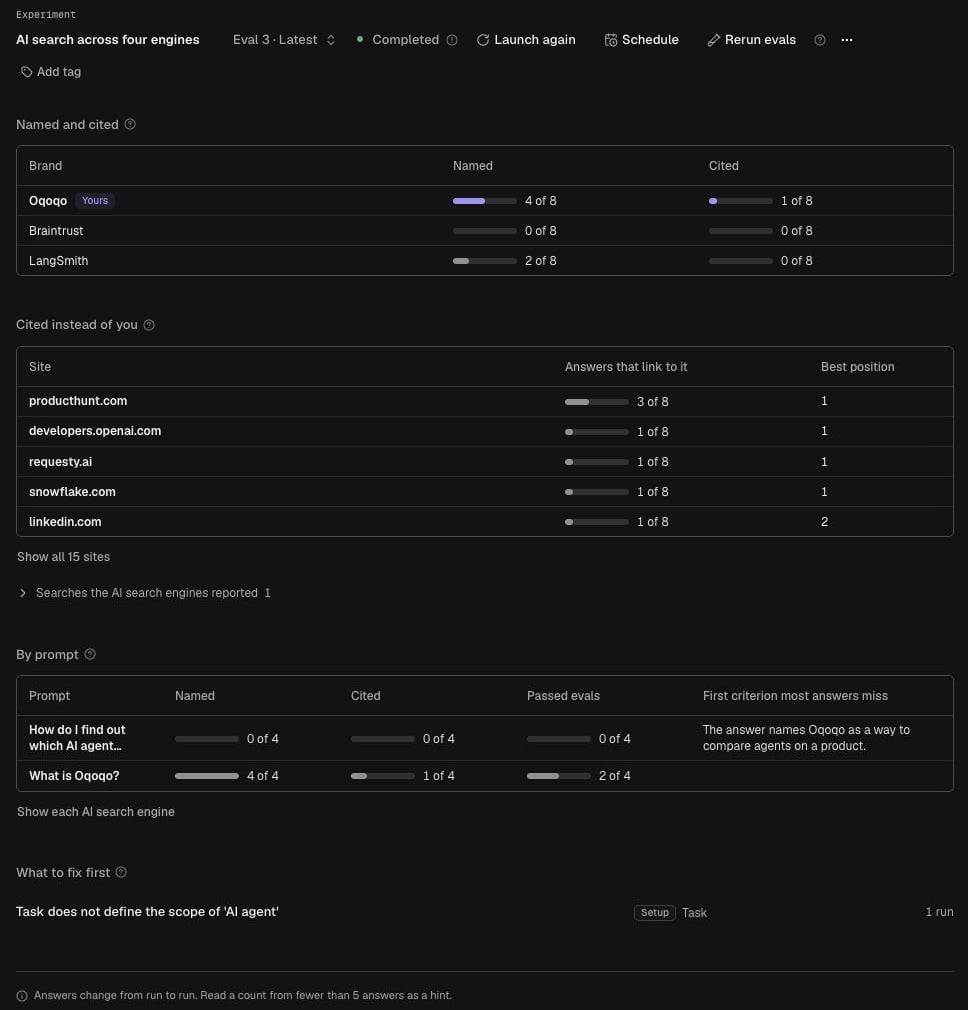
Until the project has brand details, Named and cited asks for them, Cited instead of you is titled Sites the answers cite, and By prompt shows an Answers count in place of Named and Cited.
While runs are still going, or when some did not finish, a line above the blocks says how many finished runs the counts cover.
The Matrix, Frictions, and Runs tabs work as in any experiment. The run list says AI search engine in place of Agent and has no Treatment, Treatment use, Tokens, or Cost column, because an AI search engine run has none of them. An AI search experiment has no Comparisons, because it has no treatments to compare.
- Dashboard
- CLI
- Plugin (MCP)
Open the experiment from All experiments, where Kind → AI search engines lists only AI search experiments. It opens on Results.
Read the Answer tab
A run of an AI search experiment has three tabs, Answer, Evals, and Frictions, and opens on Answer. It has no Traces tab. Open a run from a prompt in By prompt or from the Runs tab.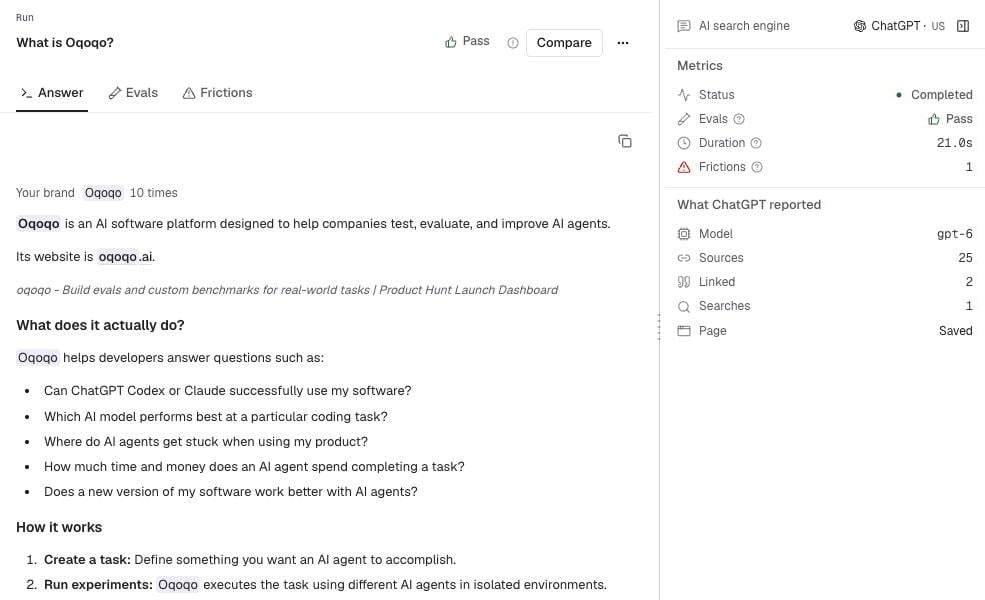
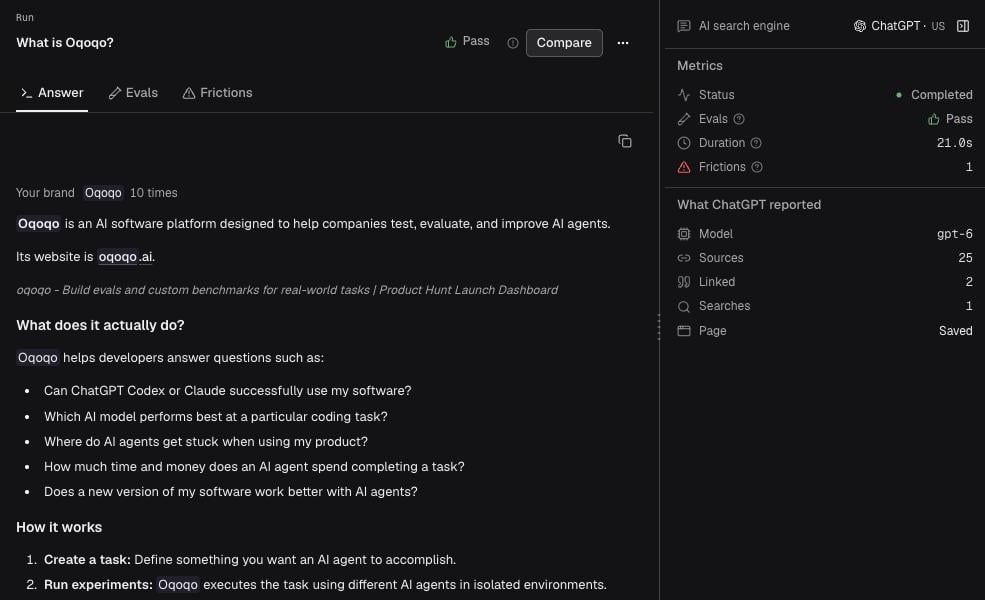
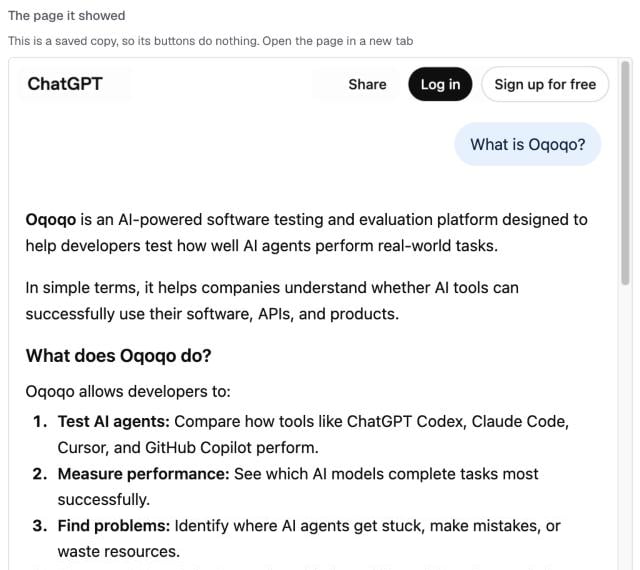
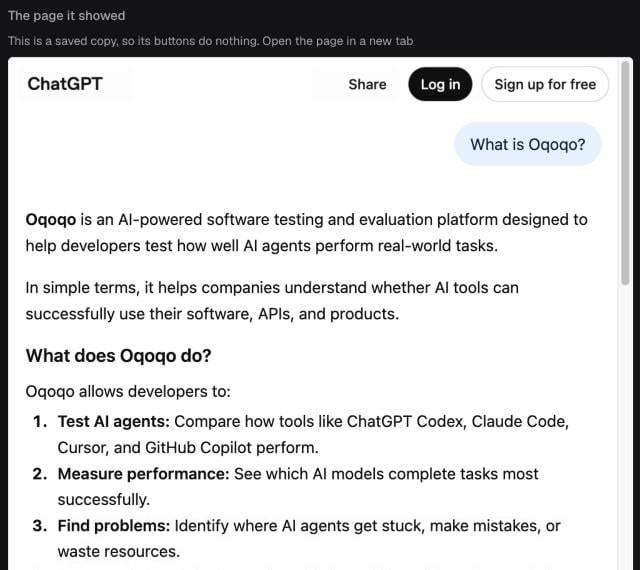
The rail’s What ChatGPT reported, named after the run’s engine, lists the Model when the engine named one, the Sources, how many are Linked, the Searches when it reported any, and the Page when one was saved.
- Dashboard
- CLI
- Plugin (MCP)
Open the run and select Answer.
Share results
Share an AI search experiment with your teammates by its link. You can’t publish it at a public link: the dashboard offers only the teammate link, and the CLI and the plugin refuse withpublication_unavailable_for_answers.
Read results with care
- Answers change from run to run. An engine can answer the same prompt differently each time, so read a count from fewer than 5 answers as a hint. Add trials before you draw a conclusion.
- A citation is a link in the answer. A source that the engine read and did not link is under Also read, and no count treats it as cited.
- Most engines don’t report their searches. A run with no Searches list doesn’t mean the engine didn’t search.
- A source is yours only from your sites. A listing or profile on another site that names your brand is marked as other. The same rule applies to a competitor’s sources.
Next steps
Tasks
Write prompts and their rubrics.
Evals
See how criteria are judged.
Frictions
Read what Insights found in the answers.
AI search tools
The plugin’s AI search tools and their fields.