> ## Documentation Index
> Fetch the complete documentation index at: https://docs.oqoqo.ai/llms.txt
> Use this file to discover all available pages before exploring further.
# Set up your organization
> Connect providers, assign AI features, invite your team, configure SSO, and manage org settings.
Set up the organization once before you launch useful experiments.
Most setup lives under **Organization settings**. Agent enablement lives under **Manage → Agents**. Personal logins live under **Profile → Integrations**. Projects live in the [project switcher](/setup/projects).
## Setup checklist
| Step | Where | Guide |
| ------------------------ | --------------------------------------------- | ----------------------------------------- |
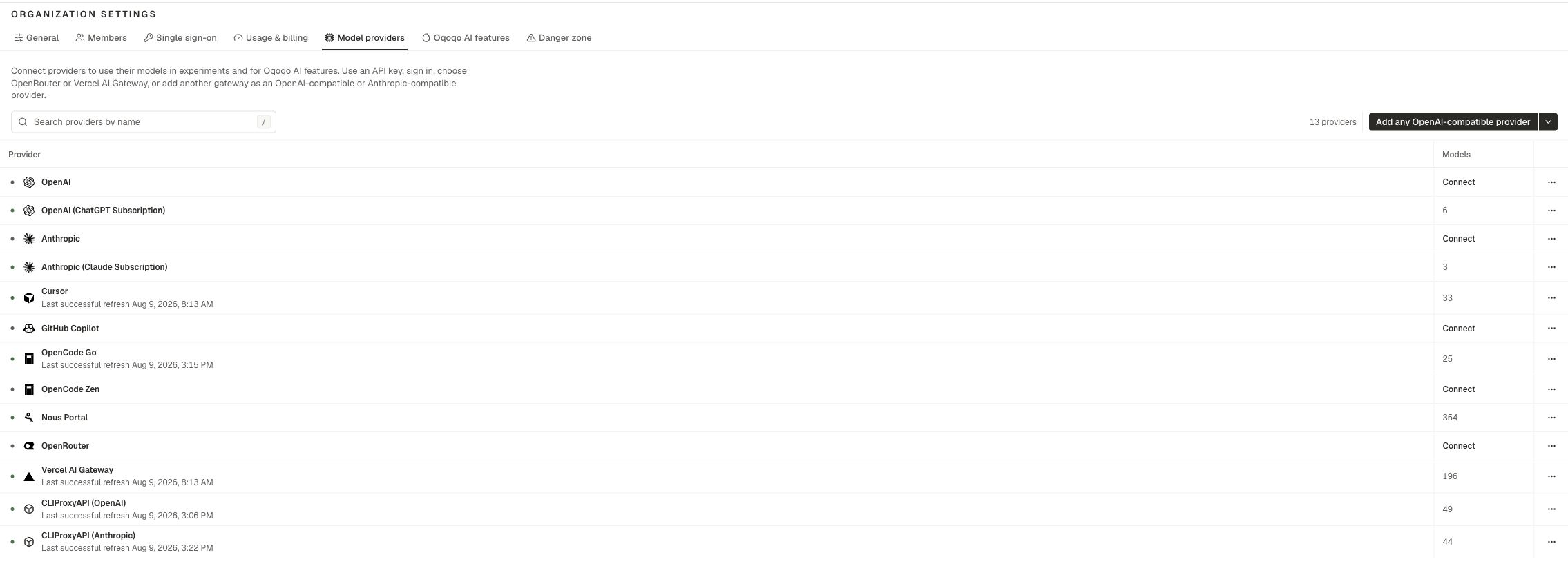
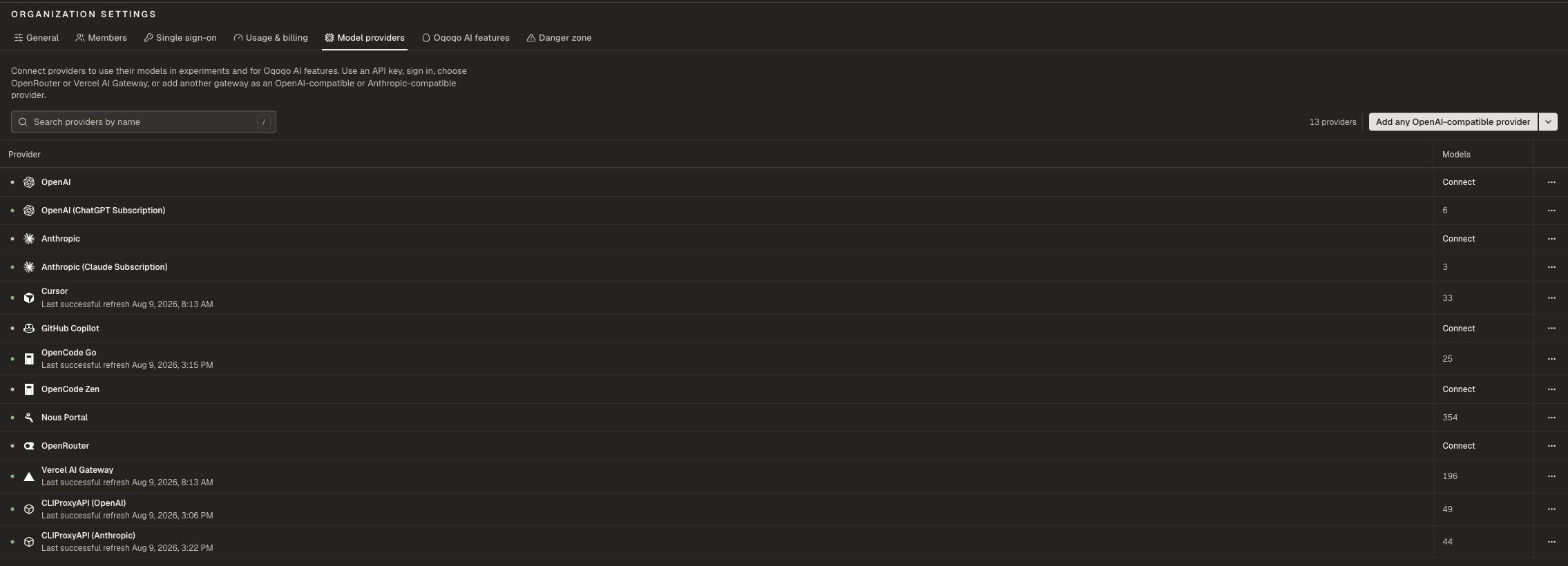
| Connect model providers | Organization settings → **Model providers** | [Model providers](/setup/model-providers) |
| Assign Oqoqo AI features | Organization settings → **Oqoqo AI features** | [Oqoqo AI features](/setup/oqoqo-ai) |
| Enable agents | **Manage → Agents** | [Supported agents](/setup/agents) |
| Connect personal logins | **Profile → Integrations** | [Profile](/setup/profile) |
| Check run balance | Organization settings → **Usage & billing** | [Billing](/setup/billing) |
| Invite teammates | Organization settings → **Members** | Below |
| Configure SSO | Organization settings → **Single sign-on** | Below |
## Organization settings tabs
| Tab | Purpose |
| --------------------- | ----------------------------------------------------------- |
| **General** | Rename the organization. View verified domains. |
| **Members** | Invite teammates and manage membership. |
| **Single sign-on** | Domains, auto-join by email domain, and SSO. |
| **Usage & billing** | Run balance, plans, and top-ups. |
| **Model providers** | Organization keys and gateways. |
| **Oqoqo AI features** | Models for Ask Oqo, Rubric generation, Evals, and Insights. |
| **Danger zone** | Leave the organization. |
 ## General
Open **Organization settings → General**.
* Update the organization **Name**
* View **Verified domains** (manage domains under Single sign-on)
## Members
Open **Organization settings → Members**.
Admins can invite teammates and manage membership. Everyone in the organization shares the same run pool and provider inventory.
## Single sign-on
Open **Organization settings → Single sign-on**.
* Manage **Domains**
* Turn on **Auto-join by email domain** when matching emails should join automatically
* Configure **Single sign-on** for your identity provider
## Danger zone
Open **Organization settings → Danger zone**.
**Leave organization** removes you from the org. Projects stay with the organization. If you are the only member, invite someone else before you leave.
## Checks after setup
* Models appear under Manage → Agents
* Ask Oqo opens without a "needs a model" message
* You can launch with Evals or Insights enabled
* You can see a run balance under Usage & billing
## Next steps
Create and switch projects.
Keys, gateways, and subscriptions.
Personal Integrations and email preferences.
In-app and email notices.
## General
Open **Organization settings → General**.
* Update the organization **Name**
* View **Verified domains** (manage domains under Single sign-on)
## Members
Open **Organization settings → Members**.
Admins can invite teammates and manage membership. Everyone in the organization shares the same run pool and provider inventory.
## Single sign-on
Open **Organization settings → Single sign-on**.
* Manage **Domains**
* Turn on **Auto-join by email domain** when matching emails should join automatically
* Configure **Single sign-on** for your identity provider
## Danger zone
Open **Organization settings → Danger zone**.
**Leave organization** removes you from the org. Projects stay with the organization. If you are the only member, invite someone else before you leave.
## Checks after setup
* Models appear under Manage → Agents
* Ask Oqo opens without a "needs a model" message
* You can launch with Evals or Insights enabled
* You can see a run balance under Usage & billing
## Next steps
Create and switch projects.
Keys, gateways, and subscriptions.
Personal Integrations and email preferences.
In-app and email notices.