> ## Documentation Index
> Fetch the complete documentation index at: https://docs.oqoqo.ai/llms.txt
> Use this file to discover all available pages before exploring further.
# Notifications
> In-app notifications, the notifications page, and email preferences.
Oqoqo notifies you in the app and, when enabled, by email.
## In-app notifications
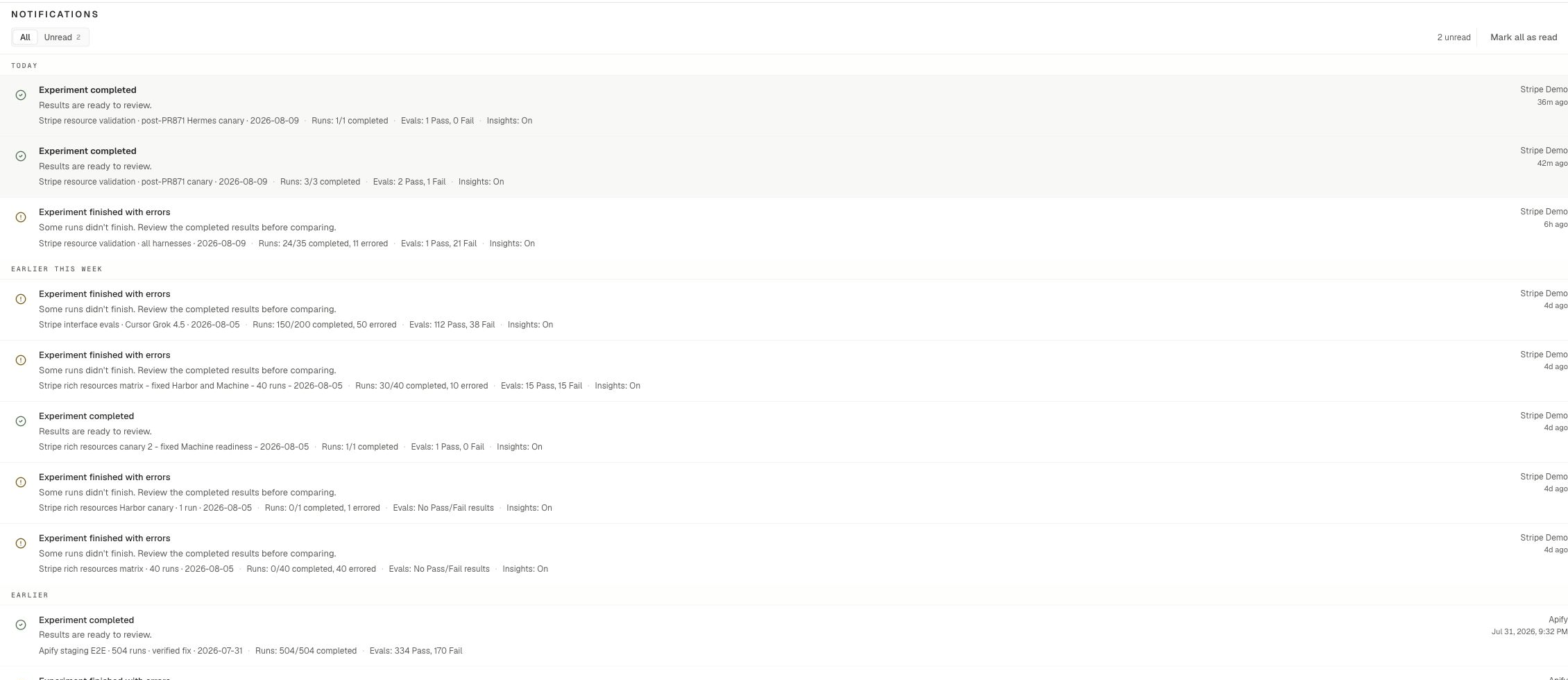
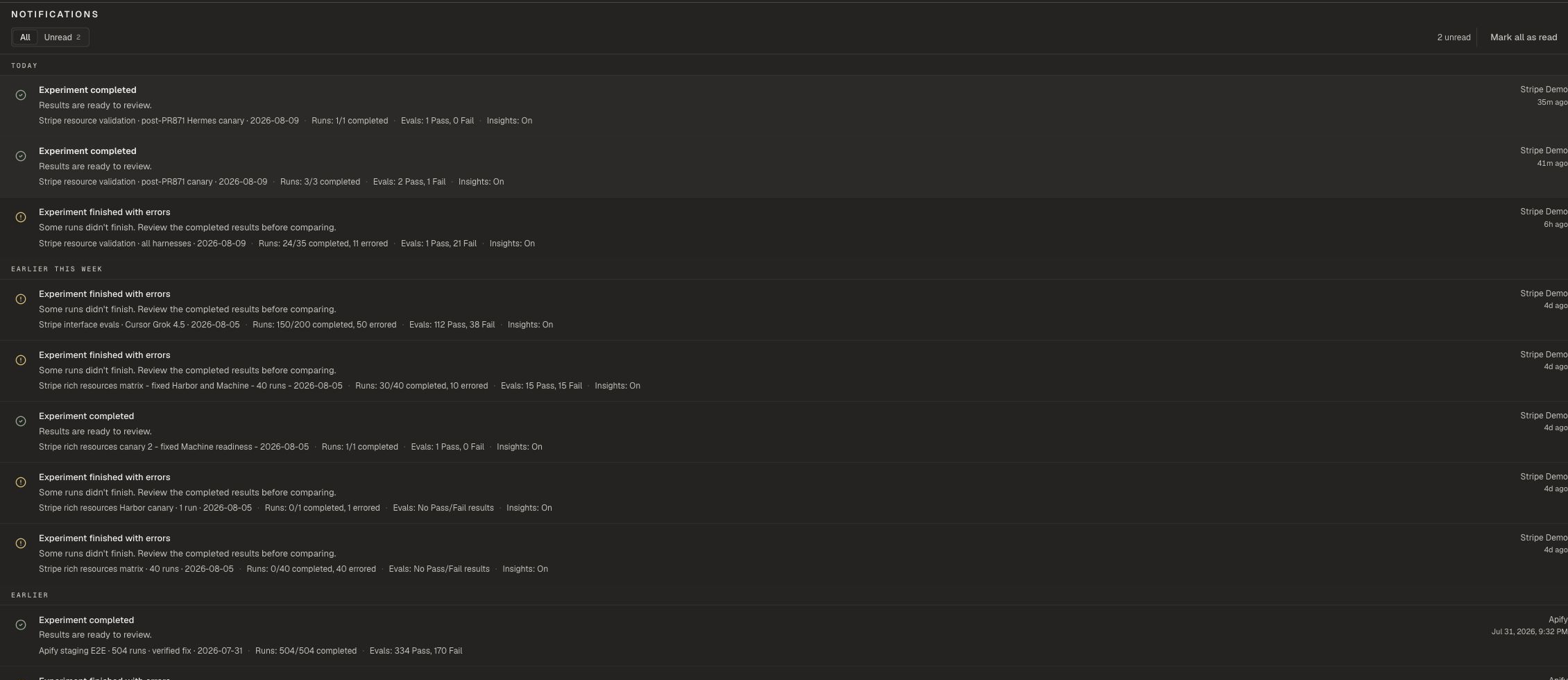
Use the **Notifications** bell in the dashboard header.
* Open the bell for recent items
* Select **See all notifications** for the full list at `/dashboard/notifications`
* Use **All** and **Unread** tabs
* Choose **Mark all as read** when you are done
In-app notifications stay on. Email preferences do not silence the bell.
 ## What you may see
Common in-app notices include:
* Experiment run status updates
* Runs balance notices
* Broken MCP connection alerts
* Asset deletion status updates
## Email preferences
## What you may see
Common in-app notices include:
* Experiment run status updates
* Runs balance notices
* Broken MCP connection alerts
* Asset deletion status updates
## Email preferences
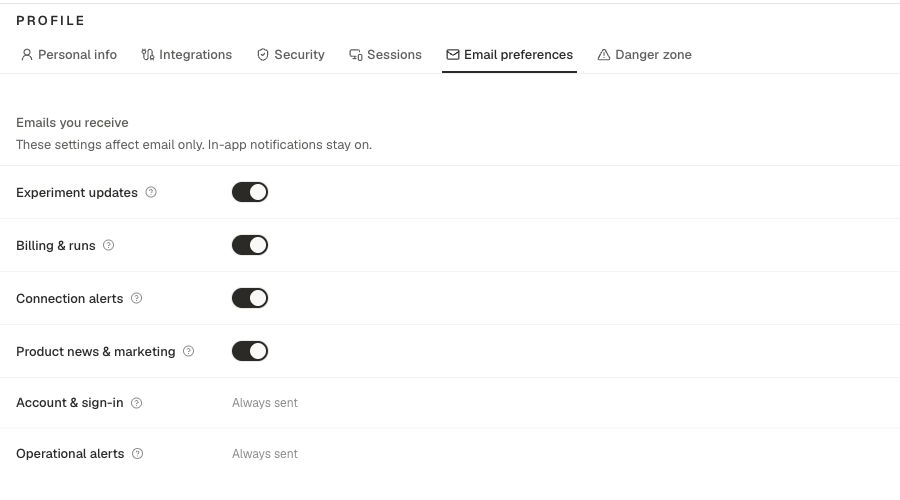
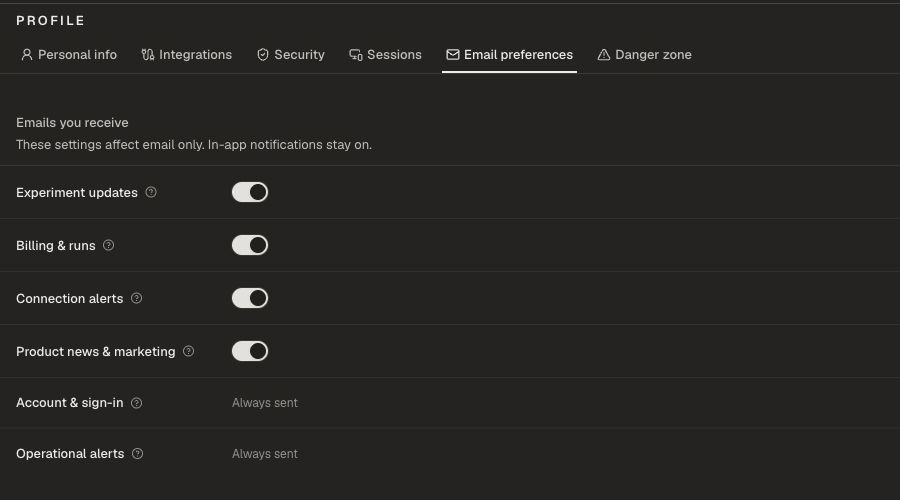 Control email under **Profile → Email preferences**. See [Profile](/setup/profile#email-preferences).
| Preference | Email covers |
| ---------------------------- | ----------------------------------------- |
| **Experiment updates** | Experiments you launched or were added to |
| **Billing & runs** | Top-up, refund, and low-runs notices |
| **Connection alerts** | MCP accounts that need reconnect |
| **Product news & marketing** | Commercial product email |
**Account & sign-in** and **Operational alerts** always send.
## CLI and MCP
You can list and acknowledge notifications, and read or update notification preferences, from the [CLI](/operate/cli) and [MCP](/operate/mcp). Money actions and secret reconnect flows still open the dashboard when needed.
## Related pages
Email preferences and Integrations.
Runs balance and top-ups.
Operate Oqoqo from an agent session.
Fix connection and setup issues.
Control email under **Profile → Email preferences**. See [Profile](/setup/profile#email-preferences).
| Preference | Email covers |
| ---------------------------- | ----------------------------------------- |
| **Experiment updates** | Experiments you launched or were added to |
| **Billing & runs** | Top-up, refund, and low-runs notices |
| **Connection alerts** | MCP accounts that need reconnect |
| **Product news & marketing** | Commercial product email |
**Account & sign-in** and **Operational alerts** always send.
## CLI and MCP
You can list and acknowledge notifications, and read or update notification preferences, from the [CLI](/operate/cli) and [MCP](/operate/mcp). Money actions and secret reconnect flows still open the dashboard when needed.
## Related pages
Email preferences and Integrations.
Runs balance and top-ups.
Operate Oqoqo from an agent session.
Fix connection and setup issues.